Changing Sql Access Data After Your Install 2631368705
Question: Do I need to re-install ScrewDrivers Pro/Enterprise just to change access to my SQL database?
Answer: No.
This is a common question we receive in Support. Your Database Administrator has setup a new database server, copied the existing Tricerat SQL database and wants you to "just point Tricerat" to use the new server. He also renamed the database. Maybe the SQL account or password may have changed too. Don't worry, you can mange these changes easily.
ScrewDrivers Database Connection
To the rescue, ScrewDrivers Database Connection. This program is installed whenever a Tricerat component needs to access your SQL database.
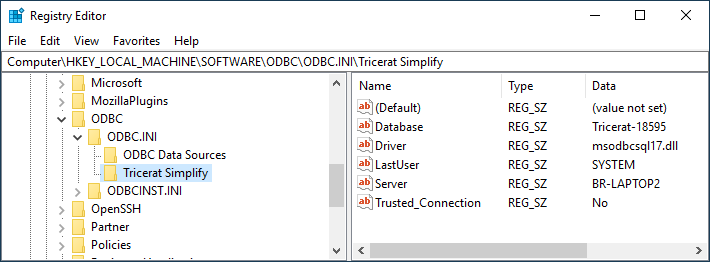 Here you can see the SQL database, driver and server we are using. If only the name of the SQL database needs to change, you could edit the Database value. If the SQL server needs changing, you could edit the Server value. This data is normally maintained by the ODBC Data Sources (64-bit) or ScrewDrivers Database Connection tools. This data makes up a Data Source Name (DSN) named "Tricerat Simplify".
The second registry location is:
HKLM\SOFTWARE\Tricerat\Common\Console DSN
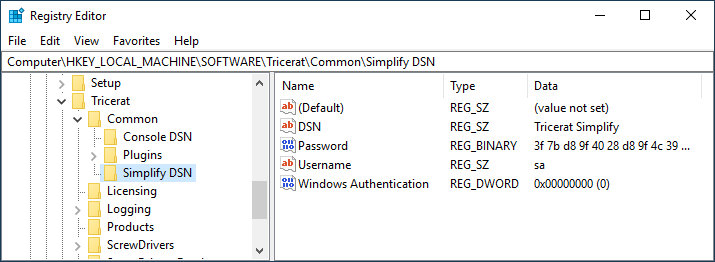 For practical purposes, these 2 locations contain the exact same data and should be kept in sync. This data is maintained by the ScrewDrivers Database Connection tool. The Password value is encrypted binary data and can only be updated by using the ScrewDrivers Database Connection tool.
Direct modifications of these registry values is never advised!
If any of this data needs to be updated, you must use the ScrewDrivers Database Connection tool.
Migrating registry DSN settings
As mentioned above, you could run the ScrewDrivers Database Connection on every server where Tricerat components are installed when SQL settings need to be updated. In some environments, this could be tedious. An alternative method would be to:
- Use the ScrewDrivers Database Connection tool to update the SQL settings
- Test these settings to verify they are correct
- Export these 3 registry locations using regedit.exe and Export
- Import the 3 created registry files from step 3 into another server
- Repeat step 4 for each server
Use caution when importing registry .reg files! Only import registry files that you trust!