Controlling Printing Default Settings
You can control printing default settings for both ScrewDrivers Endpoint Client printers and Print Server printers using standard Windows print management tools. This guide shows you how to configure these settings and ensure they're properly refreshed in your ScrewDrivers environment.
This procedure works with ScrewDrivers V7 and applies to both Endpoint Client and Print Server printer types.
Procedure for setting printing defaults
- From Devices and Printers or Print Management
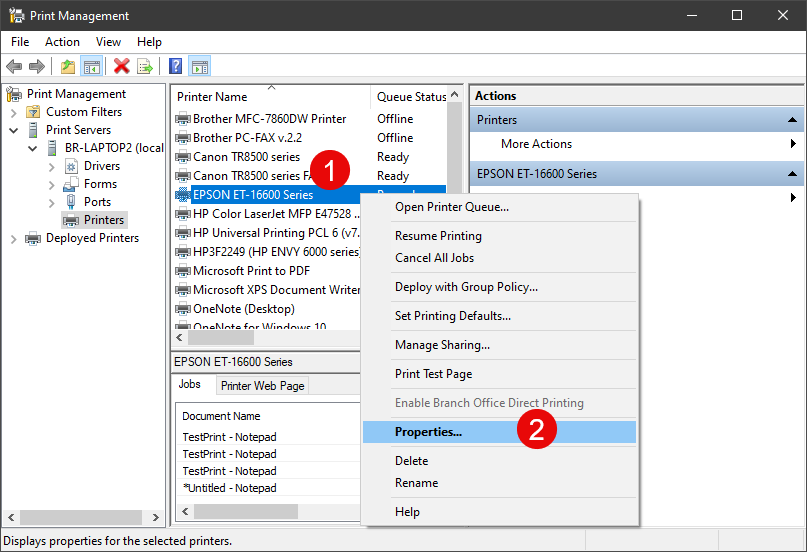
- Highlight the printer and right-click and choose Printer properties or Properties
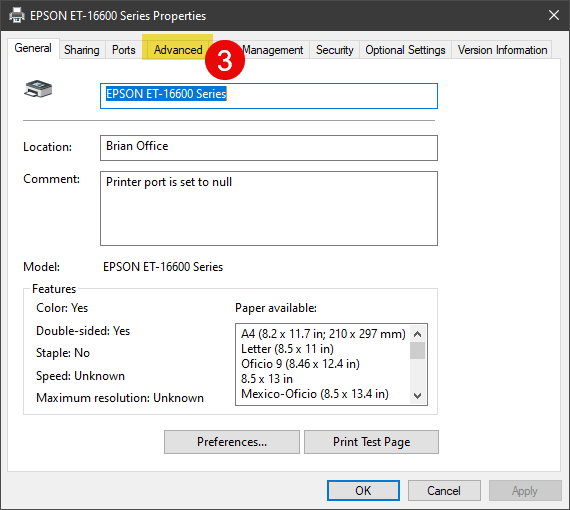
- Click the Printing Defaults button
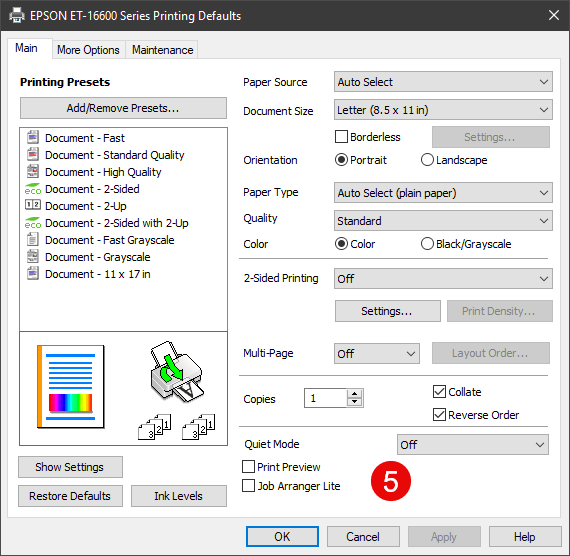
- Change the settings as desired and be sure to Apply
Refreshing your settings
After you've changed the default settings, they won't take effect immediately in ScrewDrivers. You'll need to refresh the printer information from the ScrewDrivers Endpoint Client to pick up the changes.
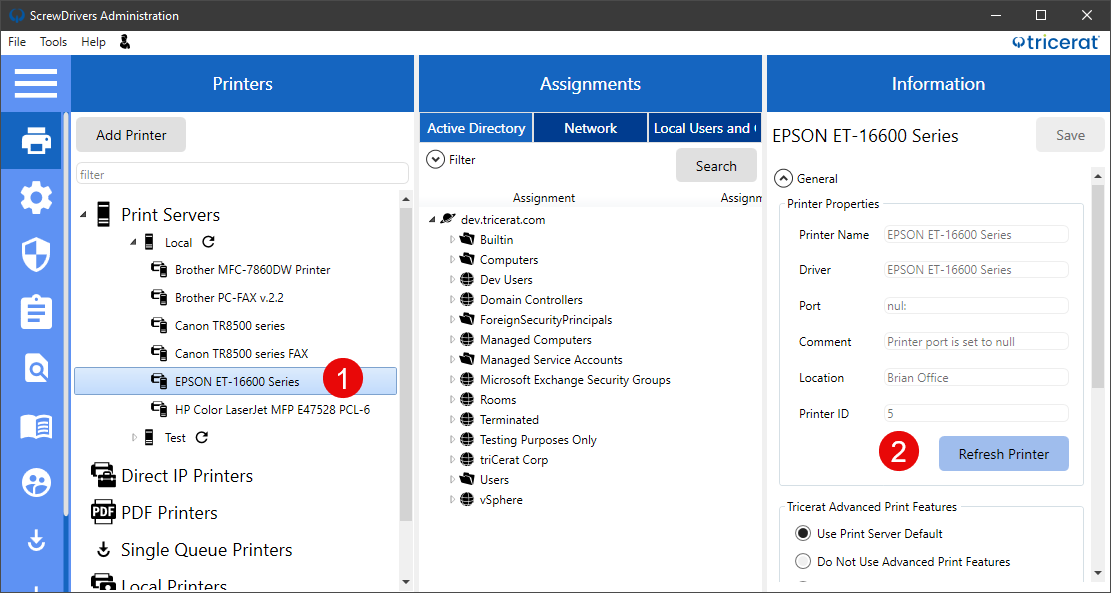
Once the query or refresh completes, you're ready to test the new settings in a fresh session on the server.
Endpoint Client caching options
The ScrewDrivers Endpoint Client gives you two ways to handle printer settings:
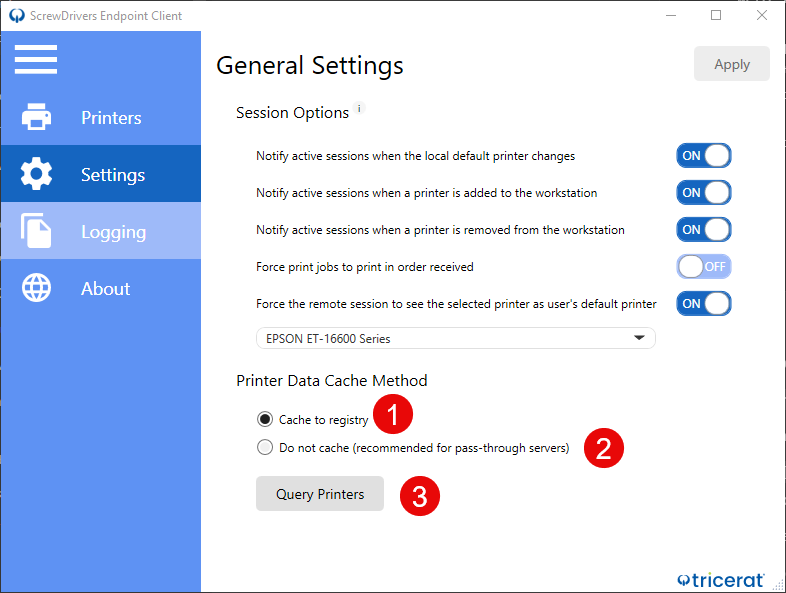
-
Cache to registry (default and most common): Saves printer information to the Windows registry for faster access. After changing settings, click the Query Printers button to refresh and cache the current printer list.
-
Dynamic query: Queries printer settings fresh each time a session starts. This option doesn't require caching, but it's less commonly used since it adds a slight delay at session startup.
For most environments, you'll want to stick with the default caching option since it provides better performance and user experience.