Using Administrator-Specified Certificates for Print Server
Starting with version 7.7.0, you can configure the ScrewDrivers Print Server to use your organization's own certificates instead of the default self-signed certificates. This capability lets you meet security policies that prohibit self-signed certificates while maintaining secure TLS 1.2 connections between clients and print servers.
Background
By default, the ScrewDrivers Print Server uses a self-signed certificate that's automatically added to the certificate store during installation. The installer creates a dedicated Tricerat path in the certificate store and places all self-signed certificates there. These certificates define how clients negotiate secure connections to the server, including public key details and supported cipher suites. Version 7.7.0 introduced stronger cipher suites than previous version 7 releases—see Version 7 TLS 1.2 support for more details about the cipher requirements.
Meeting Increasing Security Demands
Self-signed certificates aren't issued by a trusted certificate authority, and many organizations prohibit their use due to security policies. If your environment has these restrictions, you can configure ScrewDrivers to use certificates issued by your organization's certificate authority instead of the default self-signed certificate.
Specifying a Different Certificate
Follow these steps to replace the default self-signed certificate with your organization's certificate:
- Install the version 7.7.0 (or later) print server agent using the Pro or Enterprise installer.
- Open the ScrewDrivers Print Server UI on the server where you've installed the print server.
- Navigate to the Settings page:

- Choose the certificate store and browse to select your desired certificate.
- Save your changes.
After saving, you'll need to restart the print server service for the new certificate to take effect. Plan this restart during a maintenance window, because print jobs in progress may be lost and users who log in during the restart won't be able to build their printers until the service comes back online.
Testing Your Changes
After restarting the print server service, verify that the new certificate is working correctly:
- Open ScrewDrivers Administration and navigate to the Print Server object in the Printers pane. Click the Test Connection button to verify the certificate is functioning properly:
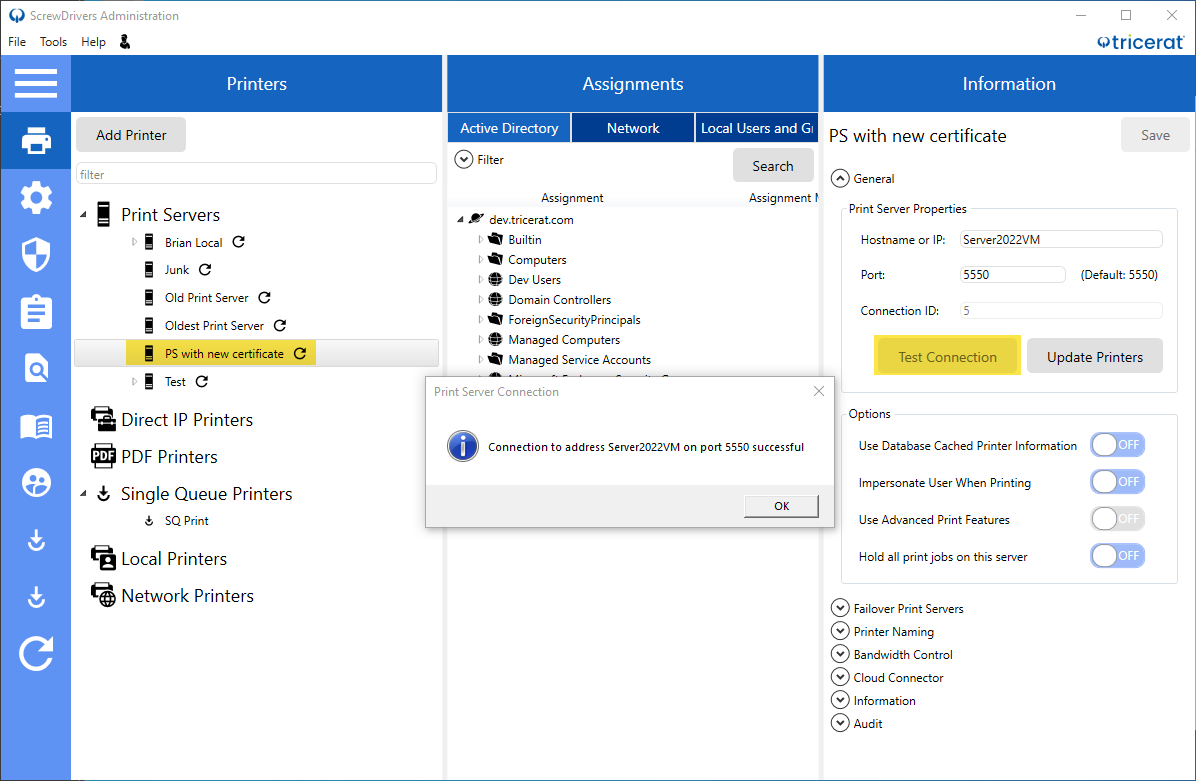
- Once the connection test succeeds, expand the Information properties and click Refresh Server Information. The Client Version should display 7.7.0.xxxxx or later.
- After both validation steps complete successfully, have a test user log in to verify that all assigned print server printers build correctly.
Note: The Cloud Connector and Gateway products also support administrator-specified certificates using the same configuration process.