Essentials: Client Printing & Redirection Architecture
Overview
ScrewDrivers Essentials delivers straightforward, reliable printer and scanner redirection for virtual desktop and terminal server environments. By installing lightweight agents on both the session side and client side, Essentials makes any locally connected printer or scanner immediately available in remote sessions without the complexity of driver installation or print server infrastructure.
This architecture is ideal for organizations that need simple, effective print and scan redirection without the overhead of SQL databases, administrative consoles, or centralized print server management.
Architecture Components
The Essentials architecture consists of two primary software components that work together to provide seamless print and scan redirection.
Session-Side Agent (Endpoint)
The Endpoint agent installs on your terminal servers, RDS hosts, or VDI virtual machines—anywhere users connect for their remote sessions. This agent creates virtual printers and scanners within each user's session, capturing print jobs and scan requests from user applications. The Endpoint agent uses Tricerat's universal virtual driver technology, which means you don't need to install manufacturer-specific drivers on your session hosts.
When a user prints from an application in their remote session, the Endpoint agent intercepts the print job, compresses it using TLS 1.2 encryption, and transmits it to the client-side agent for final delivery to the physical printer. This server-side component requires minimal configuration—typically just licensing information and basic printer naming preferences.
Client-Side Agent
The client-side agent installs on the physical endpoints where users sit—their workstations, thin clients, or even personal devices connecting from home. This agent discovers locally connected printers and scanners (USB, network, or Bluetooth) and communicates their availability to the session-side Endpoint agent when the user connects.
The client agent receives compressed print jobs from the session, decompresses them, and routes them to the appropriate physical printer using the locally installed manufacturer drivers. For scanning, the client agent provides access to TWAIN and WIA-compatible scanners, redirecting them into the remote session so users can scan documents just as if they were sitting at the physical device.
How It Works: Print Job Flow
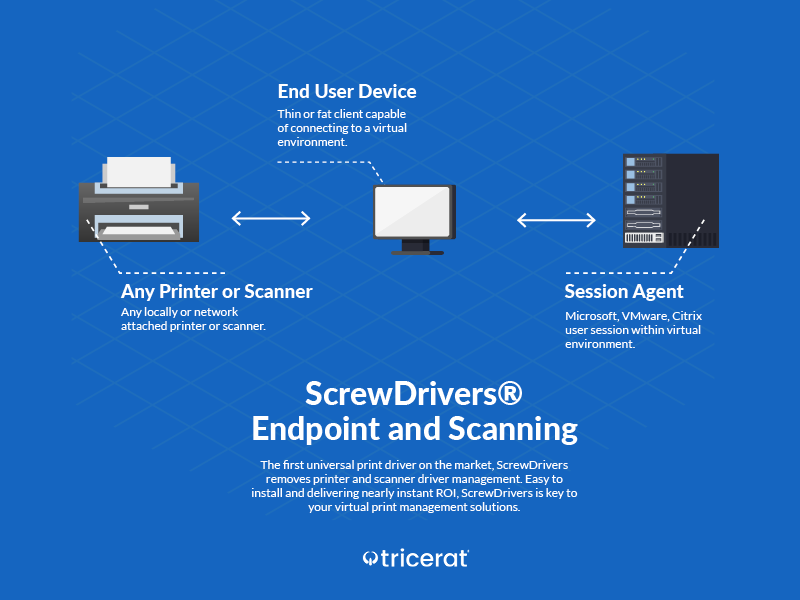
Step-by-Step Print Process
1. User Session Establishment
When a user logs into their remote session (via RDS, Citrix, Omnissa, or any supported virtualization platform), the client-side agent communicates with the session-side Endpoint agent. This handshake identifies which printers and scanners are available on the client device and should be made accessible in the session.
2. Virtual Printer Creation
The Endpoint agent automatically creates virtual printers in the user's session corresponding to each physical printer available on the client device. These virtual printers appear in the user's application print dialogs just like any local printer would. The universal driver handles all printer types—inkjet, laser, multifunction devices, label printers, receipt printers—without requiring specific manufacturer drivers on the session host.
3. Print Job Capture
When the user initiates a print job from any application (Microsoft Office, web browser, custom business application, etc.), the application sends the print job to the virtual printer created by the Endpoint agent. The universal driver captures the job along with any print preferences the user selected (paper size, duplex, color settings, number of copies).
4. Job Compression and Transmission
The Endpoint agent compresses the print job to reduce bandwidth consumption, then encrypts it using TLS 1.2 for secure transmission across the network. The compressed, encrypted job is sent from the session host to the client-side agent over the established communication channel. This transmission happens automatically and transparently to the user.
5. Client-Side Processing
The client-side agent receives the compressed job, decrypts it, and decompresses it. The agent then sends the job to the physical printer using the manufacturer's native driver installed on the client device. This approach ensures that advanced printer features (stapling, hole-punching, duplex, color profiles) work exactly as expected because the job ultimately renders using the manufacturer's own driver.
6. Print Output
The physical printer receives the job and prints it. From the user's perspective, the entire process feels identical to printing from a local application—they select print, choose their printer, configure settings, and moments later their document emerges from the physical device.
Scanner Redirection Flow
Scanner redirection follows a similar but reversed pattern compared to printing.
Scanning Process
1. Scanner Availability
When the user's session establishes, the client-side agent identifies any TWAIN or WIA-compatible scanners connected to the client device. The Endpoint agent makes these scanners available within the remote session as if they were locally attached.
2. Scan Initiation
The user opens a scanning application in their remote session (Adobe Acrobat, document management system, custom application, etc.) and selects the redirected scanner. The application sends scanning commands to the virtual scanner in the session.
3. Command Relay
The Endpoint agent relays scanning commands from the session application to the client-side agent. These commands include scan resolution, color mode, document feeder settings, and other scanner-specific parameters.
4. Physical Scan Execution
The client-side agent communicates with the physical scanner using the locally installed TWAIN or WIA driver. The scanner performs the actual scan operation, capturing the document image.
5. Image Transmission
The client agent compresses and encrypts the scanned image, then transmits it back to the session-side Endpoint agent. Large or high-resolution scans benefit significantly from the compression, reducing transmission time even over slower network connections.
6. Application Delivery
The Endpoint agent delivers the scanned image to the waiting application in the user's remote session. The user can then save, edit, or process the scanned document as needed.
Security Features
Essentials includes several security capabilities to protect print and scan data in transit.
Encryption
All print jobs and scanned images transmitted between the session host and client endpoint use TLS 1.2 encryption. This prevents interception or tampering with sensitive documents as they traverse the network. Organizations handling regulated data (healthcare PHI, financial PII, legal documents) benefit from this built-in encryption without needing to configure VPN tunnels or additional security layers.
Authentication
Essentials leverages the authentication mechanisms of your virtualization platform. Users authenticate to their virtual desktop or terminal server session using Active Directory credentials, smart cards, biometrics, or whatever authentication system your environment requires. ScrewDrivers inherits this authentication context, ensuring that only authorized users can access redirected printers and scanners.
Session Isolation
Each user session receives its own isolated set of virtual printers and scanners. User A cannot see or access printers connected to User B's client device, even when both users are logged into sessions on the same terminal server. This session isolation prevents accidental data exposure and maintains privacy in multi-user environments.
Performance Characteristics
Bandwidth Optimization
Print job compression typically reduces bandwidth consumption by 50-70% compared to uncompressed printing protocols. For organizations with limited network bandwidth—branch offices with constrained WAN links, users on VPN connections, or remote workers on home internet—this compression makes printing practical even over slower connections.
Large print jobs (multi-page reports, high-resolution graphics, complex CAD drawings) benefit most from compression. A 50MB uncompressed print job might compress to 15-20MB, dramatically reducing transmission time and network congestion.
Spooling Location
In the Essentials architecture, print jobs spool on the client side rather than the session host. This design choice reduces load on your terminal servers and VDI hosts, which often support dozens or hundreds of concurrent user sessions. By offloading print spooling to the endpoint, you preserve server resources for running user applications and maintaining session responsiveness.
Scalability
Because Essentials doesn't require print servers, SQL databases, or centralized management infrastructure, it scales efficiently. Adding users means simply installing the client agent on their endpoints—no additional server capacity, database licensing, or infrastructure overhead. This makes Essentials particularly attractive for organizations with growing user populations or seasonal scaling requirements.
Supported Environments
Virtualization Platforms
Essentials works across all major virtualization and remote access platforms:
Citrix Virtual Apps and Desktops: Full integration with ICA protocol, supporting both on-premises and Citrix Cloud deployments. Works with StoreFront, Citrix Workspace app, and legacy Receiver clients.
Omnissa Horizon: Compatible with View Connection Server and Horizon Cloud, supporting both PCoIP and Blast Extreme protocols. Works with persistent and non-persistent VDI pools.
Microsoft RDS and Azure Virtual Desktop: Native support for Remote Desktop Protocol (RDP), including RemoteFX, RemoteApp, and full desktop sessions. Fully compatible with Windows Server terminal services and Azure Virtual Desktop (formerly Windows Virtual Desktop).
Other platforms: Because Essentials uses standard virtual channel technologies, it works with most remote desktop solutions including Quest VWorkspace, Parallels RAS, and Workspot.
Client Operating Systems
The client-side agent supports a wide range of endpoint operating systems:
Windows: Windows 11, Windows 10, Windows 8.1, Windows Server operating systems macOS: Recent macOS versions for Apple desktop and laptop devices Linux: Major Linux distributions with appropriate desktop environments Thin Clients: IGEL, HP ThinPro, Dell Wyse, and other thin client platforms
Printer Compatibility
Essentials works with virtually any printer from any manufacturer:
Consumer and Business Printers: HP, Canon, Epson, Brother, Xerox, Ricoh, Kyocera, Lexmark, and hundreds of other brands
Specialty Printers: Label printers (Zebra, Dymo, Brady), receipt printers (Star Micronics, Epson), badge printers, large-format plotters, production printers
Multifunction Devices: Print, copy, scan, and fax capabilities all supported
The key requirement is that the physical printer must have a driver available for the client operating system. The session host requires no manufacturer-specific drivers.
Use Cases and Deployment Scenarios
Small to Medium Organizations
Organizations with 10-500 users often find Essentials ideal because it delivers enterprise-grade print and scan redirection without the complexity and cost of SQL Server licensing, dedicated management servers, or specialized IT expertise. IT teams can deploy Essentials in days rather than weeks, and the minimal infrastructure requirements keep both capital and operational costs low.
Branch Offices and Remote Sites
Remote locations with limited IT staff benefit from Essentials' simplicity. There's no local print server to maintain, no database to back up, and minimal ongoing administration. Users get reliable printing and scanning that "just works" without requiring local IT intervention.
Temporary and Seasonal Workers
Organizations with fluctuating workforce sizes (retail during holidays, tax preparation firms during filing season, temporary project teams) appreciate Essentials' easy scalability. Onboard new users by installing the client agent on their devices—no capacity planning for print servers, no license server adjustments, no complex configuration.
Home and Remote Workers
Remote workers connecting from home offices, coffee shops, or client sites can use their local printers and scanners in their virtual desktop sessions. The client agent works over VPN, direct internet connections, or through remote access gateways, providing a consistent printing experience regardless of location.
Pilot Projects and Proof of Concept
IT teams evaluating print management solutions or planning larger deployments often start with Essentials for pilot testing. The quick deployment and minimal infrastructure requirements make it easy to demonstrate value and user acceptance before committing to larger enterprise deployments.
Advantages of the Essentials Architecture
Simplicity
The two-component architecture (session agent + client agent) is conceptually simple and quick to deploy. There's no database to install, no complex web console to configure, no Active Directory schema extensions, and no print server infrastructure to manage. This simplicity reduces deployment time, training requirements, and ongoing administrative overhead.
Infrastructure Reduction
By eliminating print servers, you reduce hardware costs, Windows Server licensing costs, ongoing maintenance (patching, backups, monitoring), and the risk of print server-related outages. Organizations moving to cloud-hosted virtual desktops particularly appreciate removing on-premises print server dependencies.
Manufacturer Independence
The universal driver approach means you're not locked into specific printer manufacturers or forced to maintain an approved printer list. Users can connect any printer with a Windows (or Mac/Linux) driver and immediately use it in their sessions. This flexibility supports BYOD scenarios, home workers choosing their own printers, and organizations standardizing on different printer brands across different locations.
Minimal Ongoing Administration
After initial deployment, Essentials requires very little day-to-day administration. Printers connect automatically based on what's available at the user's endpoint. There are no printer assignments to manage, no print queues to monitor, and no driver updates to deploy. IT teams can focus on other priorities while printing "just works" in the background.
Limitations and Considerations
No Centralized Print Management
Essentials doesn't include administrative consoles, centralized printer assignment, or policy-based printer deployment. Each user gets the printers connected to their endpoint—nothing more, nothing less. Organizations needing to assign specific print server printers, enforce printing policies, or provide location-based printer access should consider Pro or Enterprise editions.
Client-Side Driver Requirements
Because print jobs render using drivers on the client endpoint, each endpoint must have manufacturer drivers installed for its connected printers. In environments where endpoints don't allow driver installation (locked-down thin clients, highly restricted corporate devices) or where driver management is challenging (diverse printer populations, frequent printer changes), this requirement can create administrative burden.
No Print Server Printers
Essentials only redirects printers physically connected to (or network-accessible from) the user's endpoint. It doesn't provide access to centralized print server queues. Organizations with established print server infrastructure and shared department printers need Pro edition to integrate those printers into virtual sessions.
Limited Auditing and Reporting
Essentials provides basic logging for troubleshooting but lacks comprehensive audit trails, print job tracking, or usage reporting. Organizations with compliance requirements for print tracking, cost allocation needs, or security mandates for print auditing should consider Enterprise edition with its advanced reporting capabilities.
Configuration and Management
Initial Setup
Deploying Essentials typically involves these steps:
1. License Acquisition: Obtain Essentials licenses from Tricerat (per-user or per-device licensing available)
2. Session Host Installation: Install the Essentials Endpoint agent on terminal servers or VDI gold images, configuring license server connection and basic preferences
3. Client Agent Deployment: Deploy the client agent to endpoint devices using software distribution tools (SCCM, Intune, GPO startup scripts) or manual installation
4. Testing: Verify printing and scanning functionality across different user scenarios and endpoint types
5. Rollout: Gradually deploy to user population with help desk support for any user-specific issues
Ongoing Management
Day-to-day management tasks are minimal:
License monitoring: Verify license consumption stays within purchased quantities Client agent updates: Deploy new client agent versions as Tricerat releases updates (typically quarterly) Session host updates: Update Endpoint agent on session hosts during regular maintenance windows Troubleshooting: Enable diagnostic logging for users reporting printing issues and work with Tricerat support if needed
Settings and Preferences
The Endpoint agent provides several configurable options:
Printer Naming: Control how redirected printers are named (include client machine name, session number, etc.) Auto-connect: Automatically connect default printer from client device Printer Filters: Exclude certain printer types (fax, PDF writers, etc.) from redirection Scanner Settings: Configure TWAIN/WIA redirection behavior and compression levels
These settings apply to all users on the session host, providing consistent behavior across your environment.
Comparison with Other Editions
Organizations evaluating ScrewDrivers editions should understand what Essentials provides and when to consider Pro or Enterprise editions.
Choose Essentials when:
- You need straightforward printer and scanner redirection without complex requirements
- Your users primarily print to local or client-accessible printers
- Simplicity and ease of deployment are priorities
- You want to minimize infrastructure and administrative overhead
- Your environment doesn't require centralized printer assignment or policy enforcement
Consider Pro edition when:
- You have print server infrastructure with shared department printers
- You need centralized printer assignment based on user, group, or location
- You want direct IP printing to network printers without print servers
- You require the administrative console for managing printer deployments
- Your environment uses printer profiles to enforce standard settings
Consider Enterprise edition when:
- You need mobile printing from iOS or Android devices
- Users connect via HTML5 clients or non-virtual channel protocols
- You require cloud/remote printing across networks without direct connectivity
- Comprehensive audit logging and usage reporting are compliance requirements
- Advanced features like secure pull printing or integration with document management systems are needed
Many organizations start with Essentials and upgrade to Pro or Enterprise as their requirements grow, making Essentials an excellent entry point to the ScrewDrivers product line.
Technical Specifications
Network Requirements
Ports: Standard virtual channel ports used by your virtualization platform (no additional firewall rules required) Bandwidth: Compressed print jobs typically consume 0.5-2 MB per page depending on content complexity Latency tolerance: Works well over high-latency links (VPN, remote sites) due to compression and efficient protocols
System Requirements
Session Hosts: Windows Server 2016 or newer, .NET Framework 4.8, minimum 100 MB available disk space Client Endpoints: Compatible with Windows, macOS, Linux; requirements vary by OS version Licensing: Tricerat License Server 5.x or newer for concurrent licensing; nodelock licensing available
Support and Resources
Getting Help
If you encounter issues deploying or using Essentials:
Tricerat Support: Email support@tricerat.com or call 800-582-5167 Documentation: Comprehensive installation guides, user guides, and troubleshooting articles available in this knowledge base Training: Tricerat offers training sessions for IT teams deploying ScrewDrivers
Related Documentation
- Architecture Overview - Comparison of all ScrewDrivers architectural models
- Upgrading from Version 6 to Version 7 - Version upgrade considerations
- System Requirements - Detailed compatibility information
- Installation Guide: Essentials Edition - Installation requirements and procedures
Summary
ScrewDrivers Essentials provides reliable, secure printer and scanner redirection for virtual desktop and terminal server environments without the complexity of print servers, databases, or extensive administrative infrastructure. Its straightforward two-component architecture makes any locally connected printer or scanner available in remote sessions, delivering full native functionality with minimal setup and ongoing management.
For organizations seeking simple, effective print and scan redirection, Essentials offers enterprise-grade capabilities with small-business simplicity.