Pro: Print Server Printing Architecture
Overview
ScrewDrivers Pro transforms traditional print server environments by introducing Tricerat's universal virtual driver technology alongside powerful centralized management capabilities. Instead of installing dozens or hundreds of manufacturer-specific drivers on your session hosts and struggling with driver conflicts, Pro uses a single universal driver that provides full native functionality for any printer from any manufacturer.
The Pro architecture is designed for organizations with established Windows print server infrastructure who want to deliver print server-based printers to their virtual desktop and terminal server users reliably and efficiently. With its SQL-based backend and drag-and-drop administrative console, Pro makes it easy to assign printers to users based on Active Directory groups, IP ranges, custom host names, and other flexible criteria.
Architecture Components
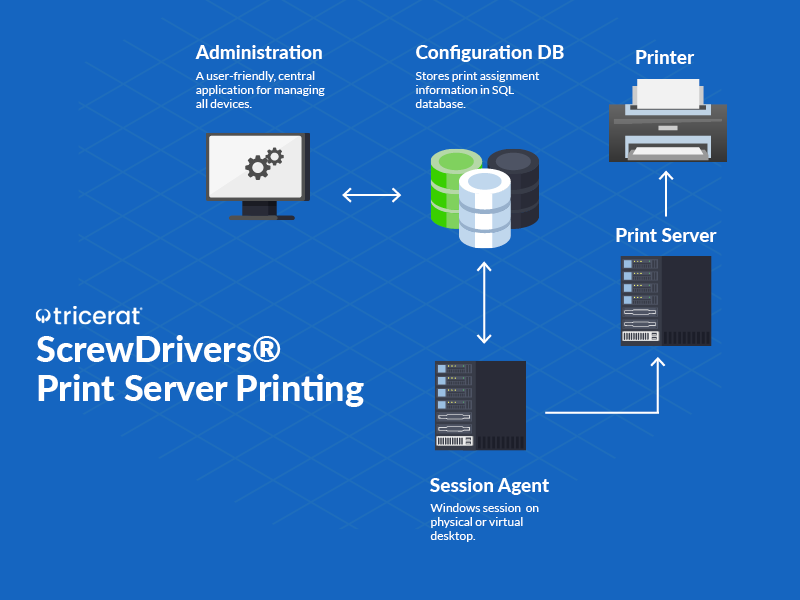
The Pro print server architecture consists of four primary components working together to deliver centralized print management with universal driver technology.
ScrewDrivers Virtual Driver
The universal virtual driver is the technological foundation of the Pro architecture. This single driver installs on your session hosts (RDS servers, VDI virtual machines) and handles print jobs for all printers regardless of manufacturer. Unlike generic print drivers that sacrifice functionality for compatibility, Tricerat's virtual driver is the only solution on the market that delivers full native print preferences for every printer manufacturer.
When a user prints to an HP printer, they see HP's native preference dialog with all HP-specific features. When they print to a Xerox device, they get Xerox's preference interface with all Xerox capabilities. Pro accomplishes this by storing printer-specific preference information in the SQL database and dynamically presenting manufacturer interfaces—all while using a single universal driver on the session host. This eliminates driver conflicts, simplifies session host management, and dramatically reduces the "driver bloat" that plagues traditional print server environments.
SQL Database Backend
Pro requires a Microsoft SQL Server database (full SQL Server or SQL Server Express) to store its configuration, user assignments, printer profiles, and print job metadata. This database serves as the central repository for all print management configuration across your entire environment.
The database stores information about every printer in your infrastructure, printer-to-user assignments, Active Directory group mappings, IP range-based assignments, printer preferences and profiles, and print job tracking information (for auditing and troubleshooting). Having this centralized data store means you configure printer assignments once and they apply consistently across all session hosts in your environment.
SQL Express (free) works well for small to medium deployments (up to a few hundred users), while full SQL Server is recommended for larger enterprises, high-availability requirements, or integration with existing SQL infrastructure.
Administrative Console
The ScrewDrivers Console is a Windows application that IT administrators use to configure and manage the entire print environment. The console connects to the SQL database and provides a graphical interface for all administrative tasks.
From the console, administrators can import and manage printer inventories from print servers, create printer profiles with default settings, assign printers to users, groups, and workstations using drag-and-drop operations, configure global settings and policies, and monitor printer deployment and print job status. The console supports role-based access control, allowing you to delegate specific administrative tasks to help desk staff or department IT liaisons without granting full system access.
Print Server Service
Pro installs a specialized service on your Windows print servers that dramatically improves print server stability and performance. This Print Server Service acts as a sub-spooling mechanism that isolates and buffers individual print jobs.
In traditional Windows print server environments, a single corrupt print job can crash the entire print spooler service, taking down all print queues on that server and affecting every user. Pro's Print Server Service isolates each print job in its own queue. If one user submits a corrupt job, Pro automatically shuts down just that single user's queue without disrupting the print server or affecting other users' jobs. This isolation dramatically reduces print server crashes and the associated help desk calls, making your print infrastructure more reliable and resilient.
How It Works: Print Job Flow
User Session and Printer Assignment
1. User Authentication and Session Establishment
When a user logs into their virtual desktop or terminal server session, they authenticate using Active Directory credentials. Once authenticated, Pro's session agent examines the user's identity, group memberships, session host IP address, and client endpoint information.
2. Printer Assignment Evaluation
Pro queries the SQL database to determine which print server printers should be available to this user. The assignment logic considers multiple criteria:
- User-based assignments: Printers assigned directly to the user's AD account
- Group-based assignments: Printers assigned to AD security groups the user belongs to
- Computer-based assignments: Printers assigned to the specific workstation or session host
- IP range assignments: Printers assigned based on the IP address of the session host or client
- Custom host name assignments: Printers assigned based on hostname or other custom identifiers
Administrators can combine these assignment methods, allowing sophisticated scenarios like "give accounting group members access to the accounting printer, but only when they log in from the finance department subnet."
3. Virtual Printer Creation
Based on the assignment evaluation, Pro creates virtual printers in the user's session using the universal virtual driver. Each virtual printer corresponds to a queue on your Windows print server but uses Tricerat's driver instead of the manufacturer's driver. The printers appear in the user's applications just like any other Windows printer.
Pro also retrieves any printer profiles (default settings) configured for each printer and applies them. For example, the "Legal-Duplex" printer might have a profile that defaults to duplex printing on legal-size paper, while the "Color-Marketing" printer defaults to color output with high-quality settings.
Printing Process
1. User Initiates Print Job
The user opens a document in any Windows application (Microsoft Word, Excel, Acrobat, web browser, custom business application) and selects Print. They choose one of their assigned printers from the print dialog.
2. Print Preferences
When the user clicks "Preferences" or "Properties" in the print dialog, Pro displays the native manufacturer preference interface for that specific printer. An HP printer shows HP's preference screens, a Xerox shows Xerox's screens, a Canon shows Canon's screens—complete with all manufacturer-specific features like booklet printing, hole-punching, watermarks, secure print, and any other capabilities the physical printer supports.
Pro retrieves the preference interface information from the SQL database (captured during printer import) and renders it dynamically. The user experiences exactly what they would see if a native driver were installed, but the session host only has the single universal driver.
3. Job Capture and Compression
When the user clicks Print, the universal driver captures the print job along with all the preference selections the user made. Pro compresses the job using TLS 1.2 encryption to reduce bandwidth consumption and secure the print data.
4. Transmission to Print Server
The compressed, encrypted job travels from the session host to the Windows print server over your network. Pro can route jobs based on administrator-configured rules—direct to specific print servers, load-balanced across multiple print servers, or failover to backup servers if the primary server is unavailable.
5. Print Server Processing
The Print Server Service on your Windows print server receives the job and places it in the isolated sub-spool for this user's queue. The service decompresses the job and sends it to the appropriate print queue using the manufacturer's native driver installed on the print server.
Because each user's jobs are isolated, a corrupt job from one user only affects that user's queue. The print spooler service remains stable and continues processing jobs for all other users without interruption.
6. Print Output
The print server sends the fully rendered job to the physical printer. The printer produces the output with all the advanced features the user selected—duplex, stapling, hole-punching, color profiles, watermarks, and anything else the hardware supports.
Centralized Management Capabilities
Printer Discovery and Import
Pro provides automated discovery tools to import printers from your existing print servers. Point the console at a print server and Pro scans all print queues, capturing printer names, drivers, default settings, and preference interfaces. This import process creates printer objects in the SQL database that administrators can then assign to users.
For large environments with hundreds of printers across multiple print servers, bulk import dramatically reduces deployment time compared to manual printer configuration. Pro also supports importing printers using INF files if you need to create printer objects without an existing print server queue.
Drag-and-Drop Assignment
The administrative console's most powerful feature is its intuitive drag-and-drop interface for printer assignments. Administrators see a tree view of Active Directory objects (users, groups, OUs, computers) on one side and a list of printers on the other side.
To assign printers, simply drag a printer object and drop it on an AD group, user, or computer. That assignment is immediately written to the SQL database and takes effect the next time users log in or refresh their sessions. This visual interface eliminates complex scripting, GPO configuration, or manual printer mapping—printer assignments become as simple as dragging and dropping.
You can also drag AD objects onto printers, assign multiple printers to multiple objects simultaneously, and use the console's assignment views to see which users have access to which printers or which printers are assigned to a particular user.
Custom Assignment Objects
Beyond Active Directory integration, Pro supports custom assignment objects for scenarios where AD doesn't provide the necessary granularity:
IP Range Assignments: Assign printers based on the IP subnet of the session host or client endpoint. Users in building A (192.168.10.0/24) automatically get building A printers; users in building B (192.168.20.0/24) get building B printers—regardless of their AD group membership.
Host Name Assignments: Assign printers based on computer name patterns or custom host identifiers. Useful for non-domain-joined devices, Linux endpoints, or scenarios where naming conventions convey location or department information.
Client Device Assignments: Assign printers based on characteristics of the endpoint device the user is connecting from, enabling scenarios like "give mobile users access to pull-print queues" or "give thin client users access to nearby network printers."
These custom objects integrate seamlessly with AD-based assignments, allowing complex assignment logic like "give Finance group members the Finance printer, plus give anyone connecting from the Finance floor IP range access to the Finance printer even if they're not in the Finance group."
Printer Profiles
Printer profiles define default settings that Pro automatically applies when creating printers in user sessions. Instead of relying on users to select the right settings every time they print, profiles enforce organizational standards and user preferences.
Profile Configuration: Administrators create profiles that specify default paper size, duplex mode, color vs. monochrome, print quality, number of copies, stapling, hole-punching, and any other setting the printer supports.
Profile Assignment: Profiles can be applied globally (all users get these defaults), per user or group (accounting users get duplex by default), or per printer (the Legal printer defaults to legal-size paper).
User Override: Users can override profile defaults when they print if they need different settings for a particular job. Profiles set sensible defaults but don't restrict user choice.
Profiles significantly reduce help desk calls related to incorrect print settings. Users don't need to remember that the legal printer requires legal paper size or that the department policy requires duplex printing for all internal documents—the profiles enforce these standards automatically.
Print Server Stability and Performance
Sub-Spooling Architecture
The Print Server Service's sub-spooling architecture is Pro's most important contribution to print server reliability. Understanding how it works helps explain why Pro-enabled print servers are dramatically more stable than traditional print servers.
Traditional Print Spooler Problems: In standard Windows print server environments, all print jobs for all users funnel through the single print spooler service. The spooler writes jobs to a shared spool directory, queues them for processing, and sends them to printers. If any job is corrupt or causes a spooler crash, the entire service goes down, taking all print queues and all users with it. Recovery requires restarting the spooler service and potentially cleaning up corrupted spool files.
Pro Sub-Spooling Solution: Pro's Print Server Service creates isolated sub-spool queues for each user's print jobs. When a job arrives, the service assigns it to a user-specific queue completely separate from other users' queues. Each queue has its own buffer, its own processing thread, and its own error handling.
If a user submits a corrupt job that would normally crash the spooler, Pro detects the error condition and shuts down just that user's queue. The print spooler service itself remains running, and all other users continue printing normally. Pro logs the error, optionally notifies administrators, and automatically attempts to restart the failed queue after a cooldown period. The affected user might need to resubmit their job, but hundreds of other users never experience any disruption.
Performance Benefits
Beyond stability, the Print Server Service improves print server performance in several ways:
Buffering: Sub-spool queues buffer print jobs efficiently, smoothing out burst traffic when many users print simultaneously (like at the start of the business day).
Prioritization: Administrators can configure priority levels for different users or groups, ensuring that executive or production printing gets precedence during peak times.
Load Balancing: Pro can distribute print jobs across multiple print servers automatically, preventing any single server from becoming overwhelmed.
Resource Isolation: Each user's queue consumes its own resource allocation, preventing a single user's large print jobs from monopolizing server resources and delaying other users' jobs.
Network Traffic and Bandwidth Optimization
Pro includes sophisticated compression and optimization to minimize network bandwidth consumption—critical for organizations with branch offices, WAN links, or limited network capacity.
Print Job Compression
Pro compresses print jobs using TLS 1.2 encryption before transmission from session hosts to print servers. Compression ratios typically range from 50-70% depending on job content:
Text-heavy documents: 70-80% compression (a 10 MB document transmits as 2-3 MB) Graphics and images: 40-60% compression (a 20 MB marketing brochure transmits as 8-12 MB) Mixed content: 50-70% average compression across typical business documents
This compression is transparent to users and administrators—it happens automatically without any configuration or performance impact.
Bandwidth Management
For environments with specific bandwidth constraints, Pro provides configurable bandwidth throttling. Administrators can limit print traffic to a maximum bandwidth allocation, ensuring that printing doesn't consume excessive network capacity and impact other business applications.
Throttling is particularly valuable during business hours when network resources are precious. Configure higher bandwidth limits during off-hours for large batch printing jobs (overnight reports, monthly statements, etc.) and lower limits during peak business hours to preserve capacity for critical applications.
Traffic Routing
Pro's intelligent routing capabilities minimize network hops and keep print traffic on local segments when possible:
Site-Aware Routing: In multi-site environments, Pro can route print jobs to print servers in the same site as the session host, avoiding WAN links entirely for local printing.
Print Server Affinity: Configure session hosts to prefer specific print servers, keeping print traffic within designated network zones or VLANs.
Failover Routing: If a preferred print server is unavailable, Pro automatically fails over to backup servers without user intervention, maintaining printing availability even during server maintenance or outages.
Use Cases and Deployment Scenarios
Enterprise Virtual Desktop Deployments
Large organizations with hundreds or thousands of users on Citrix, Omnissa Horizon, or Azure Virtual Desktop find Pro essential for delivering reliable print server access. The centralized management console allows IT teams to configure printer assignments once and have them apply consistently across all session hosts.
The universal driver eliminates the need to install and maintain manufacturer drivers on golden images or provisioned virtual machines. This dramatically simplifies image management, reduces image size, accelerates provisioning, and prevents driver conflicts that often plague large VDI deployments.
Multi-Site Organizations
Companies with regional offices, branch locations, or distributed facilities use Pro's site-aware routing and IP-based assignment to deliver location-appropriate printers to users. A user logging in from the Chicago office automatically gets Chicago printers; the same user traveling to the Miami office gets Miami printers on their next login—all without manual intervention or IT help desk involvement.
The SQL database provides a single pane of glass for managing print infrastructure across all locations. IT administrators at headquarters can configure printer assignments for remote sites without needing to visit those locations or coordinate with local IT staff.
Regulated Industries
Healthcare, finance, government, and other regulated industries appreciate Pro's audit capabilities and print job tracking. The SQL database logs print job metadata (who printed what, when, to which printer), supporting compliance requirements and forensic investigations when needed.
Pro's TLS 1.2 encryption ensures print data remains confidential in transit, satisfying security requirements for PHI (HIPAA), PII (PCI-DSS, GDPR), and classified information (government regulations).
Managed Service Providers
MSPs supporting multiple client organizations use Pro's database-driven architecture to maintain separate print environments for each client. Multi-tenancy support allows MSPs to manage different clients' print infrastructure from a single console while maintaining complete separation between client data.
The administrative console's role-based access control enables MSPs to delegate printer management to client IT staff without exposing other clients' configurations or granting access to the underlying SQL database.
Print Server Consolidation Projects
Organizations looking to reduce print server sprawl use Pro to consolidate multiple print servers while maintaining user-transparent printer access. Pro's sub-spooling isolation allows safely hosting hundreds of print queues on a single server that would be unstable under traditional print spooler load.
The centralized assignment capabilities make it easy to migrate users from old print servers to new consolidated servers gradually, testing functionality before decommissioning legacy infrastructure.
Integration with Existing Infrastructure
Active Directory Integration
Pro deeply integrates with Active Directory for authentication, authorization, and printer assignment. The administrative console imports AD structure (users, groups, OUs, computers) and allows assigning printers based on AD objects.
Pro respects AD security group nesting, so assigning a printer to a parent group automatically grants access to members of child groups. This inheritance model aligns with existing AD delegation and group management practices.
Print Server Compatibility
Pro works with all Windows print server versions from Server 2008 R2 through the latest releases. The Print Server Service installs alongside Windows print spooler service without replacing or modifying Microsoft components.
Existing print queues, drivers, and configurations remain intact. Pro augments print server functionality rather than requiring infrastructure replacement, enabling phased deployments and gradual migration.
SQL Server Integration
Pro supports Microsoft SQL Server 2012 through the latest versions, including SQL Server Express (free), Standard, and Enterprise editions. For organizations with existing SQL infrastructure, Pro's database can coexist on shared SQL instances alongside other application databases.
Pro supports SQL Server features like AlwaysOn availability groups for high availability, SQL backup and recovery, and SQL authentication or Windows authentication for database access.
Comparison with Essentials and Enterprise Editions
Pro vs. Essentials: Essentials provides client-side printer redirection only—users get printers physically connected to their endpoints. Pro adds print server integration, centralized assignment, SQL-based management, and the administrative console. Organizations with print servers or needing centralized printer management should choose Pro over Essentials.
Pro vs. Enterprise: Enterprise includes all Pro capabilities plus mobile printing, TCP/IP client support, remote/cloud printing, and advanced auditing. Organizations needing only print server integration should choose Pro; those requiring mobile or cloud printing scenarios need Enterprise.
Many organizations run Pro and Essentials side by side: Pro delivers print server printers centrally, while Essentials redirects users' local printers. This hybrid approach provides maximum flexibility—users get both organizational print resources and their personal devices.
Technical Requirements
Server Requirements
Session Hosts: Windows Server 2016 or newer, .NET Framework 4.8, universal driver installation, minimum 100 MB disk space per server
Print Servers: Windows Server 2016 or newer, Print Server Service installation, manufacturer drivers for hosted printers
SQL Server: Microsoft SQL Server 2012 or newer (Express, Standard, or Enterprise), approximately 1-5 GB database size depending on environment scale
Management Console: Windows 10 or newer, .NET Framework 4.8, network access to SQL database
Network Requirements
SQL Connectivity: Session hosts and administrative console require TCP/IP connectivity to SQL Server (default port 1433, configurable)
Print Server Connectivity: Session hosts require SMB/CIFS access to print servers (typically port 445) for job submission
Bandwidth: Compressed print jobs typically consume 0.5-2 MB per page; plan WAN capacity for peak printing periods
Licensing
Pro uses per-user or per-device licensing enforced through Tricerat License Server. Concurrent licensing available for environments where not all users print simultaneously. SQL Server licensing separate (SQL Express is free).
Getting Started with Pro
Deployment Steps
1. SQL Server Setup: Install SQL Server (or use existing instance) and create ScrewDrivers database using provided scripts
2. License Server: Install and configure Tricerat License Server with Pro licenses
3. Print Server Service: Install Print Server Service on Windows print servers
4. Session Host Agent: Install Pro agent on RDS/VDI session hosts
5. Administrative Console: Install console on administrator workstations
6. Printer Import: Use console to import printers from print servers into database
7. User Assignment: Configure printer assignments using drag-and-drop in console
8. Testing: Verify printer assignments and functionality with test users
9. Rollout: Enable for production users incrementally
Common Deployment Patterns
Pilot Phase: Deploy to small group (IT department, willing volunteers) to validate functionality and refine assignments
Department Rollout: Enable department by department, configuring appropriate printer assignments for each group
Session Host Migration: In VDI environments, enable Pro on new session hosts while maintaining legacy configuration on existing hosts during transition
Print Server Migration: Use Pro to gradually migrate users from old print servers to new infrastructure without user disruption
Support and Resources
Getting Help
Tricerat Support: Email support@tricerat.com or call 800-582-5167 Documentation: Installation guides, administrative guides, and troubleshooting articles in this knowledge base Training: Tricerat offers Pro-specific training for administrators
Related Documentation
- Architecture Overview - Comparison of all ScrewDrivers architectures
- Pro: Direct IP Printing Architecture - Serverless printing with Pro
- ScrewDrivers Pro Admin Guide - Comprehensive administrative reference
- Installation Requirements - System requirements and prerequisites
Summary
ScrewDrivers Pro delivers enterprise-grade print server management with centralized control, universal driver technology, and dramatic improvements in print server stability. By combining SQL-based configuration, intuitive drag-and-drop printer assignment, and sub-spooling isolation, Pro transforms traditional print server environments into reliable, manageable infrastructure that scales with your organization.
For organizations with Windows print servers serving virtual desktop or terminal server users, Pro provides the functionality, reliability, and administrative efficiency that traditional print management solutions cannot match.