Pro: Direct IP Printing Architecture
Overview
ScrewDrivers Pro's Direct IP printing architecture represents a modern, serverless approach to enterprise print management. Instead of routing print jobs through traditional Windows print servers, Direct IP printing sends jobs directly from session hosts to network printers via IP protocols. Yet despite eliminating print servers, you retain centralized management, policy-based printer assignment, and full native print driver functionality.
This architecture is ideal for organizations seeking to reduce infrastructure complexity, eliminate print server maintenance overhead, and embrace cloud-first strategies where traditional server-based printing models don't align with modern deployment patterns.
Architecture Components
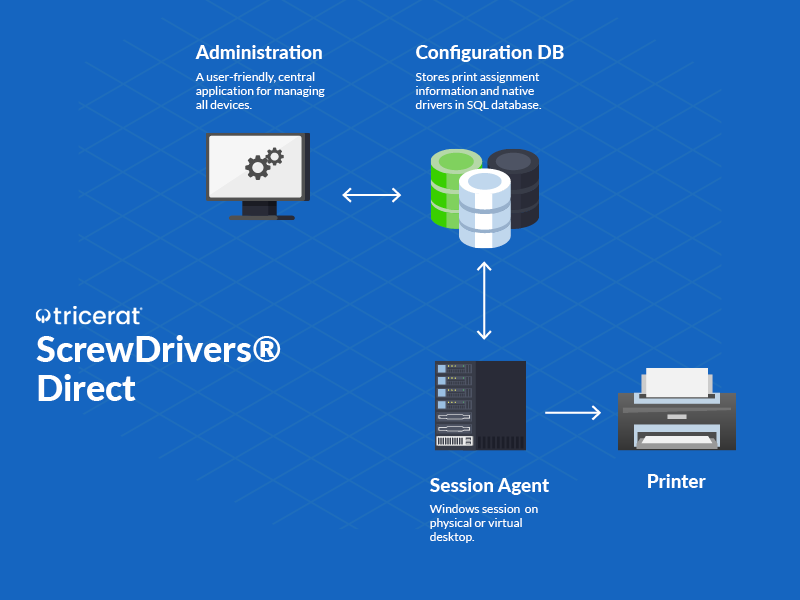
The Direct IP architecture consists of four primary components that deliver serverless printing with centralized control.
SQL Database Backend
Like the print server architecture, Direct IP printing uses a Microsoft SQL Server database (full SQL Server or SQL Server Express) as the central repository for all configuration data. The database stores printer definitions (IP addresses, host names, ports), native print driver information, printer-to-user assignments, printer profiles and default settings, and administrative configuration.
This centralized database means you configure printer assignments and policies once, and they apply consistently across all session hosts in your environment. Whether you have 5 session hosts or 500, printer assignments come from the same source of truth.
Administrative Console
The ScrewDrivers Console provides the graphical interface for managing your Direct IP printing environment. Administrators use the console to create printer objects with IP addresses and native drivers, assign printers to users, groups, and workstations via drag-and-drop, configure printer profiles with default settings, import drivers and create printer inventories, and monitor printer deployment and job status.
The console's intuitive interface makes serverless printing as easy to manage as traditional print server environments—easier, actually, since there are no print servers to maintain, patch, or troubleshoot.
Session Host Agent
The Pro agent installs on your RDS servers, VDI virtual machines, or physical workstations where users work. This agent queries the SQL database at user login to determine which Direct IP printers should be created in the session. The agent then creates Windows printer objects using the native manufacturer drivers stored in the database.
Unlike traditional print management where session hosts pull printer information from print servers via Group Policy or logon scripts, Pro's agent receives printer assignments from the SQL database based on sophisticated assignment logic. This database-driven approach provides much more flexibility than GPO-based printer deployment.
Native Print Drivers
In Direct IP architecture, Pro uses native manufacturer print drivers rather than universal driver technology. Each session host has a driver library containing native drivers for all printer models in your environment. When Pro creates a printer for a user, it uses the appropriate native driver for that specific printer model.
This approach provides complete printer functionality—every manufacturer-specific feature, preference option, and capability works exactly as designed. The trade-off is that you must maintain a driver library on session hosts, but Pro provides tools to streamline this process.
How It Works: Print Job Flow
Printer Assignment and Creation
1. User Login and Authentication
When a user logs into their session, they authenticate using Active Directory credentials. The Pro agent on the session host captures the user's identity, group memberships, session host IP address, and client endpoint information.
2. Assignment Query
The agent queries the SQL database to determine which Direct IP printers should be available to this user. Pro evaluates multiple assignment criteria:
- User-based assignments: Printers assigned directly to the user's AD account
- Group-based assignments: Printers assigned to AD security groups the user belongs to
- Computer-based assignments: Printers assigned to the specific session host or workstation
- IP range assignments: Printers assigned based on the IP address of the session host or client
- Custom host name assignments: Printers assigned based on hostname or other custom identifiers
Administrators can layer these assignment methods, creating sophisticated logic like "give engineering group members access to the large-format plotter when they log in from engineering floor subnet."
3. Printer Creation
Based on the assignment evaluation, Pro creates Windows printer objects in the user's session. Each printer is a standard Windows direct IP printer using the native manufacturer driver. From the user's perspective, these printers look and behave identically to printers they'd encounter on a physical workstation—no hint that they're centrally managed or dynamically assigned.
Pro also applies any printer profiles configured for each printer, setting default paper sizes, duplex modes, color settings, and other preferences automatically.
Printing Process
1. User Initiates Print Job
The user opens a document in any Windows application and selects Print. They choose one of their assigned Direct IP printers from the print dialog. Because these are native Windows printers using manufacturer drivers, the print dialog looks exactly like it would with locally installed printers.
2. Print Preferences
When the user clicks "Preferences" or "Properties" in the print dialog, they see the native manufacturer preference interface with all manufacturer-specific features. HP printers show HP preferences, Xerox printers show Xerox preferences, Canon printers show Canon preferences—complete with all advanced features like booklet printing, watermarks, secure PIN printing, and anything else the hardware supports.
Unlike Tricerat's universal driver approach (used in print server architecture), Direct IP printing uses native drivers end-to-end, ensuring 100% compatibility with every printer feature.
3. Job Rendering and Spooling
The native driver on the session host renders the print job, converting the application output into the printer-specific format (PCL, PostScript, XPS, or proprietary formats). The session host's Windows spooler service handles job spooling, just as it would for any Windows printer.
This server-side rendering means print jobs spool and render on your session hosts. In VDI or terminal server environments, this distributes the rendering workload across your infrastructure rather than concentrating it on print servers.
4. Direct Transmission to Printer
Once rendered, the job transmits directly from the session host to the network printer via IP protocols. Most modern printers support multiple protocols:
- Raw/Port 9100: The most common protocol for direct IP printing, sending print-ready data to TCP port 9100
- LPR/LPD: Line Printer Remote protocol, an older but still widely supported standard
- IPP (Internet Printing Protocol): A more modern protocol with advanced features and security options
The session host sends the fully rendered job directly to the printer's IP address. There are no intermediate servers, no print queue hops, no additional processing—the job goes straight from session host to printer.
5. Print Output
The network printer receives the rendered job and produces the output. Because the job was rendered with the native driver and all user-selected preferences, the output includes all requested features—duplex, stapling, hole-punching, color profiles, watermarks, and any other capabilities the hardware supports.
Serverless Advantages
Infrastructure Elimination
The most obvious benefit of Direct IP printing is eliminating print servers entirely from your infrastructure. This elimination cascades into multiple advantages:
Hardware Reduction: No print server physical hardware or virtual machines to purchase, provision, or maintain. This saves capital costs, data center rack space, power consumption, and cooling requirements.
Licensing Reduction: No Windows Server licenses for print servers, no CALs for print server access. In cloud environments, no compute costs for running print server VMs.
Administrative Reduction: No print server patching, no print spooler monitoring, no driver updates on print servers, no print queue troubleshooting. IT teams reclaim hours per week previously spent on print server maintenance.
Complexity Reduction: Fewer components means fewer potential failure points, simpler architecture documentation, easier troubleshooting, and reduced training requirements for IT staff.
Performance Characteristics
Direct IP printing offers several performance advantages over traditional print server architectures:
Reduced Latency: Print jobs travel directly from session host to printer, eliminating the network hop to an intermediate print server. In geographically distributed environments, this direct path significantly reduces print job completion time.
Improved Scalability: Without print server bottlenecks, your print infrastructure scales with your session host infrastructure. Add more session hosts to support more users, and printing capacity scales automatically—no print server capacity planning required.
Distributed Rendering: Print job rendering distributes across all session hosts rather than concentrating on print servers. This distribution prevents rendering bottlenecks and makes better use of your existing compute infrastructure.
Failure Isolation: If a session host fails, only users on that host are affected—other users continue printing normally. In print server architectures, a print server failure impacts all users dependent on that server regardless of which session host they're using.
Centralized Management Despite Serverless Architecture
One concern organizations often raise about Direct IP printing is losing centralized management capabilities. "Won't we return to the dark ages of managing printers on every workstation individually?" The answer is emphatically no—Pro's SQL-based management provides all the centralized control of traditional print server management while eliminating the print server infrastructure.
Printer Discovery and Creation
Pro provides tools to discover network printers automatically and import them into the SQL database. Point Pro's discovery tool at your network subnets and it scans for IP-enabled printers, identifies makes and models, and creates printer objects ready for assignment.
For printers that don't respond to discovery (printers behind firewalls, printers on isolated VLANs), administrators can manually create printer objects by specifying IP address, port, protocol, and printer model. Pro's driver library includes thousands of printer models from all major manufacturers, making it easy to match printers with appropriate drivers.
Driver Library Management
Since Direct IP printing uses native drivers, session hosts need a driver library containing all necessary manufacturer drivers. Pro simplifies driver management through several mechanisms:
Centralized Driver Storage: Upload drivers to the SQL database once, and Pro distributes them to session hosts automatically. You don't need to manually install drivers on each session host individually.
Driver Packages: Pro supports importing driver packages (INF files and associated drivers) from manufacturer websites or Windows driver repositories. Import a driver package once and it's available for all session hosts.
Automatic Distribution: When you create a printer assignment using a driver that's not yet on a session host, Pro automatically distributes that driver to the host before creating the printer. This just-in-time distribution ensures users always have necessary drivers without pre-loading every possible driver on every session host.
Version Management: Track driver versions in the database, update drivers centrally, and Pro handles distributing updated drivers to session hosts. This centralized version management prevents driver version mismatches that often cause printing problems.
Assignment Model
Pro's assignment model for Direct IP printing is identical to print server printing—drag and drop printers onto AD users, groups, computers, IP ranges, or custom objects. The assignment logic, inheritance rules, and priority handling work exactly the same way.
This consistency means administrators already familiar with Pro print server management can deploy Direct IP printing without learning new concepts or tools. It also means you can mix print server and Direct IP printing in the same environment, managing both from the same console using the same assignment paradigm.
Printer Profiles
Printer profiles work identically in Direct IP architecture as in print server architecture. Create profiles defining default settings (paper size, duplex, color mode, etc.), assign profiles to printers, and Pro applies those defaults automatically when creating printers in user sessions.
Profiles enforce organizational standards, reduce user confusion about printer settings, and decrease help desk calls related to incorrect output. The serverless architecture doesn't compromise any of this functionality.
Network Considerations
IP Connectivity Requirements
Direct IP printing requires IP-level network connectivity between session hosts and printers. This seems obvious but has important implications:
Network Routing: Session host subnets must have routes to printer subnets. In segmented networks with firewalls between zones, appropriate rules must allow session host-to-printer traffic on relevant ports (typically TCP 9100 for raw printing, TCP 515 for LPR, or TCP 631 for IPP).
DNS Resolution: While you can configure printers using IP addresses, using DNS host names is recommended for flexibility. If printers' IP addresses change, update DNS rather than reconfiguring every printer object in Pro.
Printer Accessibility: In environments where remote users connect via VPN or cloud-hosted virtual desktops, printers must be IP-accessible from wherever session hosts run. Printers sitting on isolated office networks might not be reachable from cloud-hosted session hosts without VPN, Direct Access, or network peering connections.
Firewall Rules: Verify firewalls between session hosts and printers allow necessary traffic. Common ports to permit:
- TCP 9100: Raw/Port 9100 printing (most common)
- TCP 515: LPR/LPD printing
- TCP 631: IPP printing
- ICMP: For printer status checking (optional but helpful)
Bandwidth and Traffic Patterns
Direct IP printing shifts network traffic patterns compared to print server architectures. Understanding these patterns helps with network capacity planning:
Distributed Traffic: Instead of aggregating all print traffic at print servers, Direct IP printing distributes traffic across the network. Each session host sends print jobs directly to destination printers, creating many-to-many traffic patterns rather than the centralized hub pattern of print server architectures.
Bandwidth Impact: In most cases, Direct IP printing reduces overall bandwidth consumption because print jobs travel directly to their destinations without passing through print servers. However, in scenarios where print servers provided strategic network aggregation (branch offices with WAN links to central print servers), Direct IP printing might increase WAN traffic if printers are distributed across WAN-separated sites.
Traffic Locality: For optimal performance, printers should be IP-accessible on local network segments relative to session hosts. Sending print jobs across slow WAN links directly from session hosts can introduce latency. In multi-site deployments, consider printer placement carefully—ideally printers should be in the same site as the session hosts whose users will print to them.
Use Cases and Deployment Scenarios
Cloud-First Organizations
Organizations running virtual desktops in Azure Virtual Desktop, Amazon WorkSpaces, or Google Cloud are embracing cloud-first strategies where traditional print servers don't fit. Direct IP printing aligns perfectly with these modern architectures—no need for print server VMs in the cloud, no print server licensing costs, no print server management overhead.
Cloud-hosted session hosts connect to network printers in office locations via site-to-site VPN, ExpressRoute, Direct Connect, or similar connectivity. Users get the same centrally managed printer assignments they'd have with print servers, but without the infrastructure complexity.
Print Server Consolidation and Elimination
Organizations with sprawling print server infrastructure (dozens of print servers across sites, departments, or business units) often find print server management consuming excessive IT resources. Direct IP printing provides an exit strategy—migrate printer assignments from print server queues to Direct IP printer objects, transition users to Direct IP printing, and decommission print servers once migration completes.
This consolidation doesn't happen overnight. Many organizations run mixed environments during transition periods, with some users on print server printing and others on Direct IP printing. Pro's unified management console handles both approaches seamlessly.
Distributed Offices with Autonomous IT
Branch offices or regional centers with local IT staff managing local printers benefit from Direct IP printing's simplicity. Local IT can manage local printers as IP devices without needing to maintain local print servers or coordinate with central IT for print queue creation.
The centralized SQL database and administrative console provide visibility and control when central IT needs it, but day-to-day printer management can be delegated to local teams without giving them access to print servers or requiring complex printer sharing configurations.
Startup and Greenfield Deployments
Organizations building new IT infrastructure from scratch often question whether print servers are necessary in 2024 and beyond. Direct IP printing answers "no"—you can deliver enterprise-grade print management without print server infrastructure from day one.
Greenfield deployments avoid the legacy constraints of existing print server configurations, driver libraries, and user expectations. Start with Direct IP printing, configure assignments based on user needs, and never deploy a print server at all.
Mixed On-Premises and Cloud Environments
Hybrid environments with some workloads on-premises and others in cloud pose challenges for traditional print server architectures. Where do you put print servers? How do cloud session hosts access on-premises print servers? Direct IP printing simplifies these scenarios—printers have IP addresses, session hosts (wherever they run) connect directly to printer IP addresses, and location becomes less important than IP connectivity.
Driver Management Challenges and Solutions
The primary operational challenge with Direct IP printing is driver management. Because you're using native drivers rather than a universal driver, you need drivers for every printer model in your environment on every session host. This section addresses strategies for managing this requirement.
Driver Library Approach
Initial Driver Collection: Gather installation packages (drivers, INF files, supporting files) for every printer model in your environment. Manufacturer websites provide these packages, or you can extract them from existing workstations or print servers where drivers are already installed.
Database Import: Import driver packages into the Pro SQL database using the administrative console. Pro stores drivers centrally and makes them available for distribution to session hosts.
Automated Distribution: When assigning printers to users, Pro automatically distributes necessary drivers to session hosts. If a session host doesn't have the driver for an assigned printer, Pro pushes the driver before creating the printer object.
Maintenance Updates: When manufacturers release updated drivers, import the new versions into the database. Pro can update drivers on session hosts during maintenance windows or gradually as users log in.
Driver Standardization
Reduce Model Variety: Organizations with dozens or hundreds of different printer models face driver management complexity. Consider standardizing on fewer printer models from fewer manufacturers. A print fleet of 5-10 standard models is much easier to manage than a fleet with dozens of different models.
Universal Manufacturer Drivers: Most major printer manufacturers offer "universal" or "PCL6" drivers that work with many models in their product lines. HP's Universal Print Driver, Xerox's Global Print Driver, and similar offerings reduce the number of distinct drivers you need to manage while retaining most printer functionality.
Driver Testing: Test drivers thoroughly before deploying to production session hosts. Driver conflicts, compatibility issues with Windows versions, or performance problems are better discovered during testing than after deployment to your entire user population.
VDI-Specific Considerations
Golden Image Driver Library: In persistent VDI environments, include common printer drivers in your golden image. Users get immediate access to standard printers without waiting for driver downloads.
Non-Persistent VDI Challenges: In non-persistent or stateless VDI (where session hosts reset to a clean image after each user session), driver installation must be extremely fast or drivers must be pre-installed in the base image. Plan your driver distribution strategy carefully for these environments.
App Layering Integration: If you use app layering technology (Omnissa App Volumes, Citrix App Layering, Liquidware FlexApp), consider creating driver layers that overlay onto session hosts dynamically. This approach allows updating drivers without recreating base images.
Comparison with Other Architectures
Direct IP vs. Print Server: Print server architecture uses Tricerat's universal driver on session hosts and native drivers on print servers. Direct IP uses native drivers on session hosts and eliminates print servers entirely. Choose print server architecture if you want universal driver benefits (single driver on session hosts, no driver conflicts) or if you have existing print server investments. Choose Direct IP if infrastructure reduction and serverless operation are priorities.
Direct IP vs. Essentials: Essentials provides client-side printer redirection only—users get printers connected to their endpoints. Direct IP provides centrally managed assignment of network printers. Organizations needing both capabilities often deploy them together: Direct IP for organizational printers, Essentials for users' personal printers.
Direct IP vs. Enterprise Remote Printing: Enterprise remote printing is designed for scenarios where session hosts and printers cannot communicate directly due to network isolation or cloud hosting. If you have IP connectivity between session hosts and printers, Direct IP is simpler. If network isolation prevents direct connectivity, Enterprise remote printing with Cloud Connector provides the necessary bridge.
Technical Requirements
Session Host Requirements
Operating System: Windows Server 2016 or newer, Windows 10 or newer (for workstation deployments) Framework: .NET Framework 4.8 Disk Space: 500 MB - 5 GB depending on driver library size Memory: Additional 100-200 MB per session for printer objects and drivers Network: IP connectivity to SQL Server and to all assigned printers
SQL Database Requirements
SQL Server: Microsoft SQL Server 2012 or newer (Express, Standard, Enterprise) Database Size: 1-10 GB depending on driver library size and number of printers Network: Accessible from all session hosts and administrative consoles
Printer Requirements
IP Connectivity: Printers must have static IP addresses or DNS names Protocols: Support for Raw/Port 9100, LPR, or IPP protocols Network Configuration: Printers must be IP-accessible from session host subnets
Network Requirements
Firewall Rules: Allow session host to printer traffic on required ports Routing: Network routes must exist between session host and printer subnets Bandwidth: Direct printing typically consumes 0.5-5 MB per page depending on content complexity
Deployment Best Practices
Start with Pilot: Deploy Direct IP printing to a small pilot group (single department, test users) before organization-wide rollout. Validate driver functionality, network connectivity, and user experience.
Driver Testing: Test all printer drivers in your lab before production deployment. Verify drivers install correctly, print reliably, and provide expected functionality.
Network Verification: Confirm IP connectivity and firewall rules allow session host to printer communication before creating printer assignments. Simple connectivity tests prevent frustrating troubleshooting later.
Gradual Migration: If migrating from print server printing, transition users gradually. Run mixed environments during migration—some users on print servers, others on Direct IP—until you validate functionality.
Documentation: Document printer IP addresses, driver versions, and assignment logic. This documentation becomes essential for troubleshooting and helps new IT staff understand your configuration.
Monitor Performance: Track print job success rates, print job completion times, and user satisfaction during and after deployment. Address issues quickly to maintain user confidence.
Getting Started
Deployment Sequence
1. SQL Server Setup: Install SQL Server or use existing instance; create ScrewDrivers database
2. License Server Configuration: Install Tricerat License Server and activate Pro licenses
3. Administrative Console Installation: Install console on administrator workstations
4. Printer Discovery: Scan network for IP printers or manually create printer objects
5. Driver Import: Import manufacturer driver packages for your printer models
6. Session Host Agent Installation: Install Pro agent on RDS/VDI session hosts
7. Printer Assignments: Configure printer-to-user assignments via drag-and-drop
8. Pilot Testing: Enable for test users and validate functionality
9. Production Rollout: Gradually enable for all users with help desk support
Support and Resources
Tricerat Support: Email support@tricerat.com or call 800-582-5167 Documentation: Detailed guides for Direct IP printing configuration and troubleshooting Training: Administrator training available covering Direct IP deployment
Related Documentation
- Architecture Overview - Comparison of all ScrewDrivers architectures
- Pro: Print Server Architecture - Alternative Pro architecture using print servers
- ScrewDrivers Pro Admin Guide - Comprehensive administrative reference
- Installation Requirements - System requirements and prerequisites
Summary
ScrewDrivers Pro's Direct IP printing architecture delivers the ultimate in infrastructure simplification—eliminate print servers entirely while retaining centralized management, policy-based printer assignment, and full native print functionality. By leveraging SQL-based configuration, native manufacturer drivers, and intelligent assignment logic, Direct IP printing provides enterprise-grade print management without the overhead of traditional print server infrastructure.
For organizations embracing cloud-first strategies, seeking to reduce infrastructure complexity, or building greenfield environments, Direct IP printing represents the modern approach to enterprise print management.