Enterprise: TCP/IP & Web Printing Architecture
Overview
ScrewDrivers Enterprise TCP/IP client architecture solves a specific challenge: delivering printer and scanner redirection when traditional virtual channel protocols are unavailable. In environments where users connect via HTML5 web browsers, zero clients, or other endpoints that don't support ICA, RDP, or PCoIP virtual channels, the TCP/IP client provides an alternative transport mechanism for print and scan redirection.
The TCP/IP client delivers the same user experience as standard ScrewDrivers Essentials client printing—users get their local printers and scanners redirected into their remote sessions—but uses TCP/IP sockets for communication instead of virtual channels. This architecture makes print and scan redirection possible in scenarios that would otherwise lack this fundamental capability.
The Virtual Channel Challenge
Traditional remote desktop protocols like Citrix ICA, Microsoft RDP, and PCoIP provide "virtual channels"—multiplexed communication paths within the remote session protocol that allow bi-directional data transfer between session hosts and client endpoints. ScrewDrivers Essentials leverages these virtual channels to redirect printers and scanners.
However, several modern remote access technologies don't provide virtual channels:
HTML5 Clients: Citrix HTML5 Receiver, Omnissa Horizon HTML5 Client, and Microsoft Remote Desktop Web Client run entirely in web browsers without requiring installed software. These browser-based clients prioritize simplicity and universal compatibility but often omit virtual channel support due to browser security restrictions and architectural constraints.
Zero Clients: Thin client devices from manufacturers like Teradici, 10ZiG, and others sometimes lack virtual channel capabilities depending on firmware version or connection mode.
Third-Party Remote Access: Some remote access solutions, remote support tools, and clientless VDI technologies don't implement standard virtual channels, making traditional print redirection impossible.
Security-Restricted Environments: Some high-security environments deliberately disable virtual channels as a security measure to prevent data exfiltration or unauthorized device access—but still need printing and scanning functionality.
The TCP/IP client architecture provides print and scan redirection in all these scenarios by establishing a separate TCP/IP connection outside the virtual channel system.
Architecture Components
The TCP/IP architecture consists of four primary components working together to deliver printer and scanner redirection over TCP/IP.
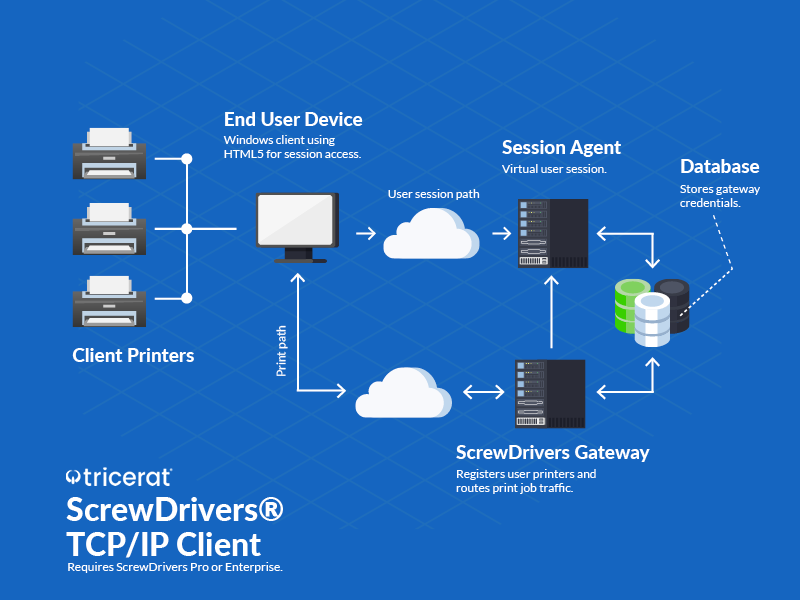
TCP/IP Client Agent
The TCP/IP client agent installs on the physical endpoint device where the user sits—the computer running the HTML5 browser, the zero client, or other endpoint device. This agent discovers locally connected printers and scanners (USB, network, Bluetooth), provides a connection interface for establishing Gateway communication, and handles bidirectional data transfer for print and scan operations.
Unlike standard ScrewDrivers clients that automatically initiate connections when users launch remote sessions, the TCP/IP client requires manual connection initiation. Before logging into their remote session, users launch the TCP/IP client application and click a "Connect" button to establish the Gateway connection. This connection persists independently of the remote session connection, allowing it to span session disconnects, reconnects, and even multiple concurrent sessions.
ScrewDrivers Gateway
The Gateway service is a Windows service that installs on a server in your network and acts as the intermediary between TCP/IP clients and session hosts. The Gateway bridges network segments, translates protocols between TCP/IP clients and session hosts, manages authentication and authorization, and routes print and scan data bidirectionally.
Client Listener: The Gateway listens on a configurable TCP port (default 4600) for connections from TCP/IP clients. When a client connects, the Gateway authenticates the user and maintains an active session with that client.
Session Host Connector: The Gateway also communicates with session host agents using Tricerat's internal protocols. Session hosts register with the Gateway and query for available printers/scanners from connected TCP/IP clients.
Data Relay: The Gateway relays print jobs from session hosts to TCP/IP clients for final delivery to physical printers. Conversely, it relays scan data from TCP/IP clients back to session hosts where applications await scanned images.
Session Host Agent
The session host agent installs on RDS servers, VDI virtual machines, or other session hosts where users connect. In TCP/IP architecture, the session host agent communicates with the Gateway (rather than directly with client endpoints) to discover available printers and scanners and transfer print/scan data.
When a user logs in, the agent queries the Gateway: "What printers and scanners are available for this user?" The Gateway consults its list of connected TCP/IP clients, matches the user identity, and reports back available devices. The agent then creates virtual printers and scanners in the user's session just as Essentials does, but using Gateway communication instead of virtual channels.
SQL Database Backend (Optional)
While not strictly required for basic TCP/IP client functionality, Enterprise edition typically includes SQL database infrastructure for configuration management, user assignments (if using managed printer assignments rather than automatic redirection), audit logging, and centralized administration. In simpler deployments focusing purely on printer/scanner redirection, the SQL database may be omitted.
How It Works: Print Job Flow
Connection Establishment
1. Client Launch and Configuration
Before connecting to their remote session, users launch the TCP/IP client application on their endpoint device. The client displays configuration options including Gateway server address (IP or DNS name) and Gateway port number (typically 4600). Organizations often pre-configure these settings via configuration files, registry keys, or command-line parameters during client deployment.
2. Gateway Connection
The user clicks "Connect" in the TCP/IP client interface. The client establishes a TCP socket connection to the Gateway server's IP address and port. This connection traverses firewalls and network infrastructure using standard TCP networking—no special virtual channel support required.
3. Authentication
The Gateway prompts for user credentials (typically Active Directory username and password). The client presents an authentication dialog, the user enters credentials, and the Gateway validates them against AD. Once authenticated, the Gateway associates this TCP/IP client connection with the user's AD identity.
Some organizations configure certificate-based authentication, use integrated Windows authentication if the endpoint is domain-joined, or leverage SSO mechanisms to eliminate the separate authentication step.
4. Device Discovery
After successful authentication and connection, the TCP/IP client scans the endpoint for locally connected printers and scanners. It reports discovered devices to the Gateway, including device names, types, and capabilities. The Gateway maintains this device inventory for this user's session.
5. Remote Session Login
With the TCP/IP client connected to the Gateway, the user now logs into their remote session using their HTML5 browser, zero client, or other remote access method. From the user's perspective, this is a completely separate connection—the browser connects to Citrix, Omnissa, or RDS session hosts using standard web protocols with no awareness of the TCP/IP client connection to the Gateway.
6. Printer and Scanner Creation
When the user's remote session initializes, the session host agent queries the Gateway: "What devices are available for user [username]?" The Gateway responds with the list of printers and scanners from the TCP/IP client connected under that user's credentials. The session host agent creates virtual printers and scanners in the user's session. To the user, printers appear in their application print dialogs and scanners appear in their scanning applications—indistinguishable from virtual channel-based redirection.
Printing Process
1. User Prints
The user initiates printing from any application in their remote session. They select one of their redirected printers from the print dialog, configure preferences, and click Print.
2. Job Capture
The session host agent captures the print job using ScrewDrivers' universal driver technology. The agent compresses and encrypts the job, then sends it to the Gateway with destination information indicating which TCP/IP client and which local printer should receive the job.
3. Gateway Relay
The Gateway receives the print job from the session host agent, identifies the appropriate TCP/IP client connection based on user identity and printer name, and transmits the compressed, encrypted job over the TCP/IP socket to the client.
4. Client Processing
The TCP/IP client receives the print job, decompresses and decrypts it, and sends the job to the physical printer using the locally installed manufacturer driver. This final rendering and transmission happens entirely on the endpoint device.
5. Print Output
The physical printer produces the document. The user gets their printout with all advanced features (duplex, stapling, color) supported by the printer and driver.
Scanner Redirection
Scanner redirection follows a similar pattern in reverse. When the user initiates a scan in their remote session, the session host agent sends scan commands to the Gateway, the Gateway relays commands to the TCP/IP client, the client interacts with the physical scanner and captures the scanned image, the client compresses and encrypts the scanned data, the Gateway relays the data to the session host agent, and the agent delivers the scanned image to the waiting application in the user's session.
Network Connectivity and Firewall Considerations
Connection Flow
TCP/IP architecture involves three distinct network connections:
1. Client to Gateway: TCP/IP client connects to Gateway server on TCP port 4600 (configurable). This connection must traverse any firewalls between the endpoint and the Gateway server.
2. Session Host to Gateway: Session host agents connect to Gateway server on a different port (typically TCP 4600 for session host-to-Gateway communication). This connection must traverse any firewalls between session hosts and the Gateway.
3. User to Session Host: Users connect to session hosts via their remote access protocol (HTTPS for HTML5 clients, proprietary protocols for zero clients, etc.). This connection is independent of ScrewDrivers architecture.
Firewall Configuration
Endpoint to Gateway: Allow outbound TCP from endpoint networks (corporate Wi-Fi, remote VPN, etc.) to Gateway server on port 4600. For remote users, this may require publishing the Gateway through a reverse proxy or DMZ if the Gateway resides inside the corporate network perimeter.
Session Host to Gateway: Allow outbound TCP from session host networks to Gateway server on port 4600. In typical deployments, session hosts and Gateway server are both inside the corporate network, so internal firewalls may already permit this traffic.
Gateway Server: The Gateway server needs inbound rules permitting TCP 4600 from endpoint and session host networks. Outbound rules should allow responses on these same ports.
Remote Access Scenarios
VPN-Based Access: Users connect to corporate VPN from their endpoint device before launching the TCP/IP client and HTML5 remote session. Once VPN-connected, both the TCP/IP client connection (to Gateway) and the HTML5 connection (to session hosts) travel over the VPN tunnel.
Direct Internet Access: For HTML5 clients accessed over the internet without VPN, the TCP/IP client also requires internet-accessible Gateway connectivity. Organizations typically publish the Gateway behind a reverse proxy, WAF, or application delivery controller providing additional security controls. The reverse proxy handles external connections and forwards authenticated traffic to the internal Gateway server.
Split Architecture: Some organizations deploy Gateway servers in DMZ networks or cloud environments where they're accessible from both external clients and internal session hosts. This split deployment allows remote users to connect without VPN while keeping session hosts protected inside the corporate network.
Use Cases and Deployment Scenarios
HTML5 Web Client Environments
Organizations standardizing on HTML5 clients for remote access benefit significantly from TCP/IP client architecture. HTML5 clients offer compelling advantages—no software installation required, works on any device with a modern browser, consistent experience across Windows, Mac, Linux, ChromeOS, etc., and easy access from BYOD devices without MDM. However, HTML5 clients' lack of virtual channel support historically meant no printer or scanner redirection—a significant limitation for many users.
The TCP/IP client resolves this limitation. Users launch a small TCP/IP client application (which does require installation but is much lighter than full remote access clients), connect to the Gateway, then access their HTML5-based remote session from their browser. They get full printer and scanner redirection despite the HTML5 client's virtual channel limitations.
Zero Client and Thin Client Environments
Zero clients and some thin client configurations lack virtual channel support or have limited virtual channel capabilities. Organizations using these endpoints—particularly in healthcare (nursing stations, physician workstations), manufacturing (plant floor terminals), retail (point-of-sale systems), or education (computer labs, libraries)—need printing and scanning but can't rely on virtual channels.
Deploy the TCP/IP client on thin/zero client firmware (if the hardware supports it) or on a separate device connected to the thin client. Users connect the TCP/IP client to the Gateway, then use the thin/zero client for their remote session. Printers and scanners attached to the thin client or to the connected device become available in the remote session.
High-Security Environments
Some organizations disable virtual channels entirely as a security measure to prevent data exfiltration, unauthorized USB device usage, or drive mapping that could introduce malware. However, these organizations still need users to print and scan documents.
The TCP/IP client provides auditable, controlled printer and scanner access. The Gateway acts as a chokepoint where all print and scan traffic passes, enabling comprehensive logging, content inspection (if required), and policy enforcement. Organizations can allow printing/scanning while maintaining virtual channel restrictions for other device types.
Multi-Protocol Environments
Organizations supporting multiple remote access protocols—some users on full ICA clients, others on RDP, still others on HTML5—benefit from protocol-agnostic printing. Rather than managing different printer redirection mechanisms for different protocols, deploy TCP/IP client universally. All users connect to the Gateway regardless of their remote access protocol, providing consistent printer/scanner redirection and simplified IT management.
Chromebook and Locked-Down Endpoints
Chromebooks, locked-down corporate workstations, and kiosk devices often lack the ability to install traditional remote access clients. Users access remote desktops via HTML5 from Chrome browser. If these users need printing, the TCP/IP client (if installable on the platform—Chromebooks present challenges) or a separate print gateway appliance provides the necessary functionality.
Advantages of TCP/IP Architecture
Virtual Channel Independence
The primary advantage is obvious: printing and scanning work when virtual channels don't exist. This unlocks remote access scenarios that would otherwise lack fundamental functionality.
Protocol Agnostic
Because TCP/IP client communication is independent of the remote session protocol, it works with any remote access technology: Citrix ICA (native clients, HTML5), Omnissa Horizon (native clients, HTML5, Blast Extreme), Microsoft RDP (native clients, web clients, Azure Virtual Desktop), third-party remote access solutions, and clientless VDI technologies. This protocol independence future-proofs your print redirection investment as remote access technologies evolve.
Network Transparency
TCP/IP is universal—every network supports TCP/IP, firewalls understand TCP/IP, network monitoring tools work with TCP/IP, and IT staff know how to troubleshoot TCP/IP. This transparency makes deployment, troubleshooting, and security analysis straightforward compared to proprietary virtual channel technologies that often behave like black boxes.
Centralized Control Point
The Gateway server provides a centralized point for logging, monitoring, policy enforcement, and troubleshooting. All print and scan traffic passes through the Gateway, making it easy to audit who's printing what, identify performance bottlenecks, enforce print quotas or restrictions, and investigate issues.
Limitations and Considerations
Connection Complexity
Unlike virtual channel-based redirection that's completely transparent to users (printers just appear automatically), TCP/IP client requires explicit user action. Users must remember to launch the TCP/IP client and click Connect before logging into their remote session. This additional step increases user training requirements and generates help desk calls when users forget.
Organizations mitigate this through startup scripts that launch the TCP/IP client automatically, prominent user reminders or connection instructions, MDM policies that ensure the client runs at boot, and clear documentation emphasizing the connection sequence.
Gateway Dependency
The Gateway becomes a critical dependency. If the Gateway is down or unreachable, users cannot print or scan. Unlike distributed virtual channel architectures where each client communicates directly with session hosts, TCP/IP architecture funnels all communication through the Gateway.
Deploy redundant Gateway servers behind load balancers for high-availability environments. Monitor Gateway health and performance closely. Include Gateway availability in SLA and uptime reporting.
Separate Authentication
Users authenticate to the Gateway (TCP/IP client connection) and separately authenticate to their remote session. While both authentications typically use the same AD credentials, the duplicate authentication step can frustrate users and introduce password expiration or account lockout complications.
Some organizations implement single sign-on (SSO) or certificate-based Gateway authentication to streamline this process. Others accept the duplicate authentication as necessary security layering.
Firewall Complexity
TCP/IP architecture requires additional firewall rules compared to virtual channel architectures. Network security teams need to understand the Gateway's role, the ports required, and the traffic patterns to configure firewalls appropriately.
Plan firewall changes during design phase, document all required firewall rules clearly, test connectivity from all user locations before production deployment, and include network security team members in deployment planning and testing.
Client Installation Requirement
While HTML5 remote access eliminates the need for remote access client installation, TCP/IP printing still requires installing the TCP/IP client application on endpoint devices. This reduces one of HTML5's primary advantages (zero installation). Organizations must weigh the value of HTML5 remote access against the requirement for TCP/IP client installation for printing.
For environments where endpoints are managed (corporate workstations, thin clients), client installation is straightforward. For BYOD or unmanaged devices, client installation may prove challenging or unacceptable to users.
Deployment Best Practices
Gateway Placement
Deploy Gateway servers where they're accessible from both endpoint networks and session host networks. For internal users only, place the Gateway inside your corporate network with firewall rules allowing endpoint and session host connectivity. For remote users without VPN, consider DMZ placement, reverse proxy fronting, or cloud-hosted Gateway instances accessible from internet.
Redundancy and High Availability
Deploy multiple Gateway servers behind network load balancers for production environments. Configure load balancers to health-check Gateway instances and remove failed servers from rotation. Test failover scenarios during pilot deployment—ensure users can reconnect to alternate Gateway servers if their primary server fails.
User Communication and Training
Provide clear, step-by-step instructions for TCP/IP client usage. Create visual guides showing the connection sequence: 1) Launch TCP/IP client, 2) Click Connect, 3) Enter credentials if prompted, 4) Verify connection established, 5) Open HTML5 browser and log into remote session. Include these instructions in user onboarding, post them on your intranet or help portal, and train help desk staff to guide users through the process.
Automated Client Deployment
Use software deployment tools (SCCM, Intune, Jamf, Group Policy) to push the TCP/IP client to managed endpoints. Pre-configure Gateway server address and port via registry keys or configuration files to eliminate manual configuration. Configure the client to launch automatically at system startup so users don't need to remember to run it manually.
Pilot Testing
Deploy to a pilot group using HTML5 clients or zero clients before organization-wide rollout. Validate printing from various applications, test scanner redirection if applicable, measure user acceptance and identify training gaps, verify Gateway capacity and performance under load, and confirm firewall rules and network routing work as designed.
Monitoring and Alerting
Implement Gateway monitoring to detect connection issues, authentication failures, or performance degradation quickly. Monitor Gateway metrics like active TCP/IP client connections, active session host connections, print job throughput, authentication success/failure rates, and connection attempts per second. Alert when Gateway services stop, connections drop below expected levels (indicating connectivity issues), or authentication failures spike (indicating password issues or potential attacks).
Technical Requirements
Gateway Server: Windows Server 2016 or newer, .NET Framework 4.8, TCP port 4600 for client and session host connections (configurable), network connectivity to both endpoint networks and session host networks
Session Hosts: Windows Server 2016 or newer (RDS) or supported VDI platforms, .NET Framework 4.8, network connectivity to Gateway server
TCP/IP Client: Windows 7 or newer, macOS 10.12 or newer, Linux (select distributions), network connectivity to Gateway server
Firewalls: Rules permitting endpoint-to-Gateway TCP traffic, rules permitting session host-to-Gateway TCP traffic
SQL Database (optional): Microsoft SQL Server 2012 or newer for advanced features like printer assignments, audit logging, and centralized management
Comparison with Other Architectures
TCP/IP vs. Essentials: Essentials uses virtual channels; TCP/IP uses Gateway-mediated TCP/IP connections. Choose Essentials when virtual channels are available (standard ICA, RDP, PCoIP clients). Choose TCP/IP when virtual channels are unavailable (HTML5, zero clients, security-restricted environments).
TCP/IP vs. Mobile Printing: Mobile Printing targets iOS/Android devices with native mobile apps. TCP/IP targets endpoint devices (desktops, laptops, thin clients) running full operating systems. The Gateway component is shared between these architectures, but the client applications and use cases differ.
TCP/IP vs. Remote/Cloud Printing: Remote Printing (covered next) addresses scenarios where session hosts cannot directly reach printers due to network isolation. TCP/IP addresses scenarios where virtual channels are unavailable but standard printer connectivity exists. These are complementary solutions for different problems.
Support and Resources
Tricerat Support: Email support@tricerat.com or call 800-582-5167 Documentation: TCP/IP client deployment guides, Gateway configuration documentation, firewall planning guides Training: Administrator training covering TCP/IP client architecture and Gateway management
Related Documentation
- Architecture Overview - Comparison of all ScrewDrivers architectures
- Essentials: Client Printing Architecture - Virtual channel-based alternative
- Enterprise: Remote/Cloud Printing - Network-isolated scenario solution
- ScrewDrivers Enterprise Admin Guide - Comprehensive administrative reference
Summary
ScrewDrivers Enterprise TCP/IP client architecture extends printer and scanner redirection to scenarios where traditional virtual channels are unavailable—HTML5 web clients, zero clients, and security-restricted environments. By establishing independent TCP/IP connections mediated through a Gateway server, TCP/IP client delivers the same user experience as virtual channel-based redirection while supporting modern remote access technologies and deployment patterns.
For organizations adopting HTML5 clients, deploying zero clients, or requiring protocol-agnostic print redirection, TCP/IP client architecture provides the solution that makes printing and scanning practical in virtual channel-less environments.