Enterprise: Remote Printing & Cloud Printing Architecture
Overview
ScrewDrivers Enterprise Remote Printing architecture solves one of the most challenging problems in modern cloud computing: providing access to on-premises printers from cloud-hosted virtual desktops and applications when direct network connectivity doesn't exist. As organizations move virtual desktop infrastructure to Azure, AWS, Google Cloud, or other cloud platforms, they often discover their users still need to print to physical printers located in office buildings, data centers, or production facilities—printers that exist on entirely separate networks with no direct IP connectivity to the cloud environment.
Remote Printing uses the Cloud Connector service to build a bridge between network-isolated environments, enabling users in cloud-hosted sessions to print to print servers located on-premises (or vice versa) without requiring site-to-site VPNs, ExpressRoute, Direct Connect, or other expensive and complex network infrastructure.
The Cloud Printing Challenge
Traditional print server architectures assume network connectivity: session hosts can reach print servers via SMB protocols, print jobs can be transmitted from session hosts to print servers over the network, and print servers can communicate directly with network printers. These assumptions hold true in traditional data center environments where everything exists on the same corporate network.
Cloud hosting breaks these assumptions. Consider common scenarios:
Azure Virtual Desktop with On-Premises Printers: Your organization hosts virtual desktops in Microsoft Azure for scalability and modern management capabilities. However, your physical printers remain on-premises in office buildings. Azure VMs and on-premises printers exist on completely separate networks with no direct connectivity unless you establish ExpressRoute or site-to-site VPN.
On-Premises VDI with Remote Office Printers: Your Citrix or Omnissa VDI infrastructure runs in your primary data center, but you have branch offices with local printers. You don't want to backhaul all print traffic over WAN links to central data center print servers, but session hosts in the data center cannot reach branch office printers directly.
Hybrid Cloud Applications: Some applications run in the cloud while others run on-premises. Users need to print from both environments to printers in both environments, creating cross-environment printing requirements that standard print server architecture cannot accommodate.
Security-Isolated Networks: Air-gapped networks, DMZ environments, or security-segmented networks where sessions hosts and print servers deliberately cannot communicate directly for security policy reasons—yet users still need printing functionality.
Remote Printing with Cloud Connector addresses all these scenarios by creating an application-layer bridge that doesn't require network-level connectivity between isolated environments.
Architecture Components
The Remote Printing architecture consists of five primary components working together to bridge network isolation.
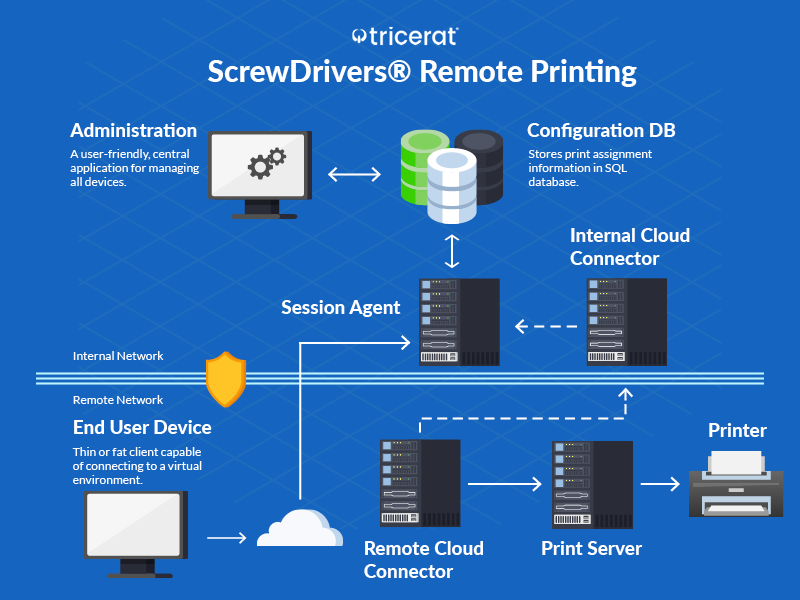
Cloud Connector Service
The Cloud Connector is a Windows service that installs on servers in each network segment that needs to participate in remote printing. Typically this means one or more Cloud Connector instances on the session host side (in the cloud or data center where users connect) and one or more Cloud Connector instances on the print server side (where physical printers and print servers exist).
Outbound Connectivity Only: Cloud Connectors communicate by establishing outbound connections to a cloud-based relay service (operated by Tricerat or hosted privately). Neither side requires inbound firewall rules or published services—both Cloud Connector instances initiate outbound connections to the relay, and the relay mediates communication between them.
This outbound-only design is crucial because cloud security policies often forbid inbound connections, and on-premises firewalls may block unsolicited inbound traffic. By using outbound connections only, Cloud Connector works within typical security postures without requiring firewall exceptions.
Bidirectional Data Relay: Once Cloud Connector instances establish connections to the relay, the relay provides a bidirectional tunnel between them. Print jobs flow from session-side Connectors through the relay to print-server-side Connectors. Status information, authentication data, and configuration updates flow bidirectionally as needed.
Authentication and Authorization: Cloud Connector authenticates to the relay service using certificates or API keys provisioned during deployment. This authentication ensures only authorized Cloud Connector instances can participate in your print environment.
Session Host Agent
The session host agent (ScrewDrivers Endpoint or Pro agent depending on edition) installs on cloud-hosted session hosts—Azure Virtual Desktop VMs, AWS WorkSpaces, Citrix Cloud virtual desktops, or other cloud-hosted session infrastructure. This agent provides the session-side print capabilities.
When a user logs in, the agent queries (via the local Cloud Connector) for available print server printers accessible through the remote printing bridge. Based on user assignments and permissions, the agent creates virtual printers in the user's session using ScrewDrivers' universal driver technology.
When users print, the agent captures jobs with the universal driver, compresses and encrypts them, and transmits jobs to the local Cloud Connector for relay to the print server side.
Print Server Agent
The print server agent installs on Windows print servers in your on-premises environment (or wherever your print servers exist—branch offices, data centers, production facilities). This agent provides the print server-side capabilities.
The print server agent communicates with the local Cloud Connector to receive print jobs arriving via the relay. When jobs arrive, the agent submits them to Windows print queues using standard Windows print spooler APIs. From the print server's perspective, jobs appear to originate locally—the complexity of cloud connectivity is completely abstracted.
The agent also reports printer information (available printers, capabilities, status) back through the Cloud Connector and relay so session host agents know what printers exist and can create appropriate virtual printers for users.
SQL Database Backend
Like other Pro and Enterprise architectures, Remote Printing uses the ScrewDrivers SQL database for configuration, user assignments, printer profiles, and audit logging.
The database stores printer definitions including print server locations and queue names, user and group assignments determining who can access which printers, printer profiles defining default settings, Cloud Connector configurations and pairings, and audit logs tracking print activity across the remote printing infrastructure.
Typically the database resides on the print server side (on-premises) where most ScrewDrivers infrastructure components are deployed, but it can be hosted in the cloud or accessed by both environments if appropriate connectivity exists.
Administrative Console
The administrative console provides centralized management for the entire remote printing infrastructure. Administrators use the console to configure Cloud Connector pairings defining which session hosts can access which print servers, assign printers to users and groups using familiar drag-and-drop interface, configure printer profiles and default settings, monitor Cloud Connector status and connectivity, and troubleshoot print job failures or user issues.
The console typically runs on the print server side where it can access the SQL database and interact with print server agents, though remote console access is possible if database connectivity exists.
How It Works: Print Job Flow
Cloud Connector Pairing and Setup
1. Cloud Connector Deployment
Administrators install Cloud Connector services on servers in each network segment. For Azure Virtual Desktop scenarios, this typically means installing Cloud Connector on a Windows VM in the Azure resource group alongside AVD session hosts (session-side Connector) and installing Cloud Connector on a server in the on-premises data center near Windows print servers (print-server-side Connector).
2. Relay Service Registration
Each Cloud Connector registers with Tricerat's cloud-based relay service (or your private relay if you're hosting your own). Registration uses certificates or API keys that uniquely identify each Connector. The relay service authenticates Connectors and creates isolated communication channels for your organization.
3. Connector Pairing
Using the administrative console, administrators pair session-side Connectors with print-server-side Connectors. This pairing defines the communication topology: "Cloud Connector A (in Azure) should communicate with Cloud Connector B (on-premises) for print server access." Pairing configuration includes which session hosts use which Cloud Connectors, which print servers are accessible through which Cloud Connectors, and security policies governing the connection.
4. Relay Tunnel Establishment
Once paired, Cloud Connectors maintain persistent outbound connections to the relay service. The relay mediates communication between paired Connectors, creating a logical tunnel through which print data flows. This tunnel is encrypted, compressed, and multiplexed to handle multiple concurrent print jobs efficiently.
User Session and Printer Assignment
1. User Login
A user logs into their Azure Virtual Desktop session (or other cloud-hosted virtual desktop). The session host agent initializes as part of the user's session startup.
2. Printer Discovery
The session host agent queries the local Cloud Connector: "What print server printers are available for this user?" The Cloud Connector relays this query through the relay service to the paired print-server-side Cloud Connector.
3. Print Server Query
The print-server-side Cloud Connector queries the print server agent and SQL database to determine which printers this user has access to based on their Active Directory identity, group memberships, and assigned printers. The query results are sent back through the relay to the session-side Cloud Connector.
4. Virtual Printer Creation
The session host agent receives the list of available printers and creates virtual printer objects in the user's cloud-hosted session. These printers use ScrewDrivers' universal driver and appear in the user's applications just like any Windows printer. The user has no indication that these printers are on a completely different network segment, behind corporate firewalls, and accessible only through cloud relay infrastructure.
Printing Process
1. User Prints
The user opens a document in an application running in their cloud-hosted session and selects Print. They choose one of their assigned printers from the print dialog—printers that physically exist on-premises but appear local to their cloud session.
2. Job Capture
The session host agent captures the print job using the universal driver. The driver intercepts the job from the application, captures all user-selected preferences (paper size, duplex, copies, color mode, etc.), and compresses and encrypts the print data.
3. Transmission to Session-Side Connector
The agent transmits the compressed, encrypted print job to the local Cloud Connector running in the Azure environment (or wherever the session host exists).
4. Relay Transmission
The session-side Cloud Connector sends the print job through its persistent connection to the relay service. The relay identifies the destination (the paired print-server-side Connector) and forwards the job through the tunnel.
5. Print Server Reception
The print-server-side Cloud Connector receives the print job from the relay, decompresses and decrypts the job data, and passes it to the print server agent running on the Windows print server.
6. Print Queue Submission
The print server agent submits the job to the appropriate Windows print queue using standard Windows printing APIs. The print server processes the job normally—spooling, rendering with the manufacturer's driver, and transmitting to the physical printer.
7. Print Output
The physical printer produces the user's document. From the user's perspective, they printed from their cloud-hosted session to an on-premises printer just as seamlessly as if everything were on the same network.
Status and Error Feedback
The architecture supports bidirectional status communication. If a print job fails (printer offline, out of paper, print spooler error), the print server agent reports the error to the print-server-side Cloud Connector. The error information flows back through the relay to the session-side Cloud Connector and ultimately to the session host agent, which can notify the user or log the error for troubleshooting.
Similarly, printer status information (printer online/offline, paper jams, toner low) can flow from print servers through the relay to session hosts, allowing status-aware printer selection and proactive user notifications.
Security Considerations
Encryption
All print job data and control communications transmit encrypted through the Cloud Connector relay tunnel. Encryption uses TLS 1.2 or higher, ensuring print jobs remain confidential even though they traverse the internet between cloud and on-premises environments.
Authentication
Cloud Connectors authenticate to the relay service using certificates or API keys, preventing unauthorized Connectors from joining your print environment. User authentication leverages Active Directory, ensuring only authorized users can access printers. Printer assignments respect AD security groups and organizational policies.
Isolation
Each organization's relay tunnels are completely isolated from other organizations. Tricerat's cloud relay service (if used) provides multi-tenant isolation ensuring your print data never mixes with other customers' data. Private relay hosting is available for organizations with requirements to keep all data within their own infrastructure.
Outbound-Only Firewall Rules
Cloud Connectors require no inbound firewall rules—only outbound HTTPS (port 443) to the relay service. This security posture dramatically reduces attack surface compared to solutions requiring published services, inbound VPNs, or bidirectional network connectivity.
Audit Logging
Enterprise edition logs all print activity comprehensively: who printed what document, when, from which cloud session host, to which on-premises printer, job size and page count, and success/failure status. These audit logs support compliance requirements and forensic investigations.
Use Cases and Deployment Scenarios
Azure Virtual Desktop with On-Premises Printers
This is the most common Remote Printing scenario. Organizations migrate their virtual desktop infrastructure to Azure Virtual Desktop (AVD) for cloud scalability, modern management, disaster recovery, and reduced data center costs. However, physical printers remain on-premises because relocating them to Azure is impractical (users need physical access to retrieve documents) and cost-prohibitive (internet bandwidth for print jobs from Azure to cloud-hosted printers would be expensive).
Deploy Cloud Connector in the Azure resource group alongside AVD session hosts and on-premises near Windows print servers. Users logging into AVD sessions get seamless access to on-premises printers without requiring ExpressRoute, site-to-site VPN, or any network-level connectivity between Azure and on-premises environments.
Multi-Cloud Environments
Organizations using multiple cloud providers (Azure for some workloads, AWS for others, Google Cloud for specific applications) need printing from all environments. Remote Printing supports this by deploying Cloud Connectors in each cloud environment, all pairing with on-premises Cloud Connectors. Users get consistent printer access regardless of which cloud their session hosts in.
Branch Office Printing from Central VDI
Organizations with VDI infrastructure in a central data center but printers in distributed branch offices face WAN bandwidth and latency challenges when backhaul printing traffic centrally. Remote Printing allows branch office printers to be accessed by users on central VDI without backhauling—Cloud Connectors in branch offices bridge the connectivity gap, and print jobs route efficiently to local printers.
Air-Gapped and Security-Isolated Networks
High-security environments with air-gapped networks or stringent segmentation requirements (federal government, defense contractors, financial trading floors) often cannot establish traditional network connectivity between security zones. Remote Printing's relay-based architecture can work even in these scenarios (using privately hosted relays rather than Tricerat's cloud relay) because it doesn't require direct network connectivity.
Disaster Recovery and Business Continuity
Organizations using cloud infrastructure for disaster recovery scenarios benefit from Remote Printing. When failing over from on-premises VDI to cloud-hosted VDI during a disaster, users need access to printers in surviving facilities. Remote Printing provides this access automatically because Cloud Connectors and relay tunnels are already established—users failover to cloud sessions and their printers failover seamlessly.
Gradual Cloud Migration
Organizations migrating to the cloud incrementally (some workloads remaining on-premises while others move to cloud) face hybrid challenges. Remote Printing supports gradual migration by allowing printing from wherever users' sessions are hosted (cloud or on-premises) to wherever printers exist (on-premises or cloud). As migration progresses, printing continues working without reconfiguration.
Advantages of Remote Printing Architecture
Network Infrastructure Elimination
The most significant advantage is eliminating expensive, complex network infrastructure. Organizations save costs on ExpressRoute/Direct Connect subscriptions, site-to-site VPN appliances and licensing, network engineering time for cross-environment connectivity, and bandwidth costs for printing over dedicated links.
Firewall-Friendly
Outbound-only connectivity requirements work within typical firewall policies without requiring special exceptions, security reviews, or change control processes. This simplifies deployment and reduces security concerns.
Cloud-Native Design
Remote Printing is designed for cloud architectures rather than adapted from on-premises solutions. It embraces cloud assumptions (lack of network connectivity, security isolation, resource elasticity) rather than fighting against them.
Scalability
Cloud Connector infrastructure scales by adding Connector instances and load balancing across them. There's no single bottleneck—multiple Connectors can handle print traffic in parallel, and Connectors can be added or removed dynamically based on load.
Simplified Troubleshooting
Because all communication flows through defined Cloud Connector endpoints and relay services, troubleshooting is more straightforward than traditional multi-hop network architectures. Monitor Cloud Connector status, relay connectivity, and job flow through well-defined points rather than tracing network paths through routers, firewalls, and VPNs.
Limitations and Considerations
Relay Dependency
Remote Printing depends on the relay service (Tricerat cloud relay or your private relay) being operational and accessible. If the relay is down or unreachable from either side's Cloud Connector, printing fails. This dependency requires monitoring relay service availability, Cloud Connector connectivity to relay, and having documented procedures for relay service outages.
High-availability relay deployments (multiple relay servers, geographic distribution) mitigate this risk, and Tricerat's cloud relay service offers enterprise-grade SLAs for availability.
Latency
Print jobs travel from session hosts to session-side Cloud Connector to relay service to print-server-side Cloud Connector to print server—multiple hops that introduce latency compared to direct session host-to-print server connectivity. In most cases this latency is negligible (seconds), but for very large print jobs or geographically distant endpoints, users may notice longer job submission times.
Compression reduces data transmission time, and the asynchronous nature of printing (users don't wait for jobs to complete before continuing work) makes latency less impactful than it would be for interactive workloads.
Internet Bandwidth Consumption
Print jobs transmit over internet connections between cloud and on-premises environments (when using Tricerat's cloud relay) or over your network when using private relay. Large print jobs consume internet bandwidth, potentially impacting other cloud-hosted workloads. Compression significantly reduces bandwidth consumption (50-70% typical reduction), but organizations with bandwidth constraints should monitor print traffic and plan capacity accordingly.
Configuration Complexity
Remote Printing involves more components than simpler ScrewDrivers architectures. Cloud Connectors, relay services, pairings, and cross-environment communication introduce complexity that requires careful planning, documentation, and IT staff training. Organizations should invest in proper deployment planning and knowledge transfer to avoid misconfiguration and troubleshooting difficulties.
Cost
Enterprise edition licensing (required for Remote Printing) costs more than Essentials or Pro editions. Additionally, running Cloud Connector infrastructure (VMs, service accounts, monitoring) adds operational costs. Organizations must weigh these costs against the alternative costs of ExpressRoute, site-to-site VPN, or other network infrastructure solutions. In most cases, Remote Printing's costs are substantially lower than network alternatives, but cost comparison should be explicit during planning.
Deployment Best Practices
Pilot with Single Print Server
Start with a pilot deployment connecting one cloud-hosted session host to one on-premises print server. Validate connectivity, test print job flow, measure latency and throughput, verify audit logging and monitoring, and train IT staff on Cloud Connector management before expanding to production scale.
High Availability
Deploy multiple Cloud Connector instances on each side (session host side and print server side) behind load balancers. Configure Cloud Connectors for failover—if one Connector fails, others continue handling print traffic. Monitor Cloud Connector health and connectivity continuously and alert when Connectors go offline or become unreachable.
Network Path Validation
Verify outbound HTTPS connectivity from Cloud Connector locations to the relay service before deployment. Test from actual VMs or servers that will host Cloud Connectors, not just from general network locations—subnet-specific firewalls or security group rules might block connectivity even when general internet access works.
Bandwidth Monitoring
Monitor internet bandwidth consumption for print traffic. Establish baselines during pilot deployment and extrapolate for full production load. If bandwidth constraints exist, consider print job throttling, scheduled large job printing during off-hours, or increasing internet capacity.
Documentation
Document Cloud Connector pairings, relay service configuration, firewall rules and network paths, print server and session host associations, and troubleshooting procedures. Cloud architecture complexity requires thorough documentation for operational stability and staff transitions.
Security Hardening
Harden Cloud Connector servers using least privilege service accounts, disabling unnecessary services and protocols, keeping Windows and ScrewDrivers software patched, implementing host-based firewalls, and monitoring for anomalous activity or connection attempts.
Technical Requirements
Cloud Connector Servers: Windows Server 2016 or newer, .NET Framework 4.8, outbound HTTPS (port 443) connectivity to relay service, connectivity to session hosts (session-side Connector) or print servers (print-server-side Connector)
Session Hosts: Windows Server 2016 or newer (RDS), Windows 10/11 or newer (VDI), Azure Virtual Desktop compatible images, .NET Framework 4.8
Print Servers: Windows Server 2016 or newer, ScrewDrivers print server agent installation, connectivity to print-server-side Cloud Connector
SQL Database: Microsoft SQL Server 2012 or newer, accessible from print server environment (typically co-located on print server side)
Relay Service: Tricerat cloud relay service (SaaS) or privately hosted relay (requires additional infrastructure and licensing)
Bandwidth: 0.5-2 MB per page after compression; plan for peak printing periods
Comparison with Other Architectures
Remote Printing vs. Direct IP: Direct IP printing requires IP-level connectivity between session hosts and printers. Remote Printing works when this connectivity doesn't exist. Choose Direct IP when network connectivity exists; choose Remote Printing when it doesn't.
Remote Printing vs. Print Server Printing: Traditional print server printing requires network connectivity between session hosts and print servers. Remote Printing bridges connectivity gaps. Choose traditional print server printing for on-premises environments with standard network connectivity; choose Remote Printing for cloud/on-premises hybrid scenarios.
Remote Printing vs. TCP/IP Client: TCP/IP client addresses lack of virtual channels (HTML5 clients). Remote Printing addresses lack of network connectivity (cloud/on-premises separation). These are complementary solutions for different problems—you might use both in the same environment.
Support and Resources
Tricerat Support: Email support@tricerat.com or call 800-582-5167 Documentation: Cloud Connector deployment guides, relay service configuration documentation, Azure Virtual Desktop integration guides Training: Specialized training for Remote Printing and Cloud Connector deployment
Related Documentation
- Architecture Overview - Comparison of all ScrewDrivers architectures
- Pro: Print Server Architecture - Traditional print server printing for non-cloud scenarios
- Enterprise: TCP/IP Client Architecture - Virtual channel-less printing solution
- ScrewDrivers Enterprise Admin Guide - Comprehensive administrative reference
Summary
ScrewDrivers Enterprise Remote Printing architecture delivers the ultimate solution for cloud and hybrid printing scenarios where network isolation prevents traditional print server access. By using Cloud Connector services and relay-based tunneling, Remote Printing bridges the gap between cloud-hosted virtual desktops and on-premises printers without requiring expensive ExpressRoute, site-to-site VPN, or complex network infrastructure.
For organizations embracing Azure Virtual Desktop, multi-cloud strategies, or hybrid cloud deployments, Remote Printing provides the secure, scalable, manageable printing infrastructure that makes cloud migration practical without sacrificing printer access.