Enterprise: Mobile App Printing Architecture
Overview
ScrewDrivers Enterprise Mobile Printing extends your organization's print infrastructure to smartphones and tablets, enabling employees to print from iOS and Android devices to any printer in your Windows print server environment. Users install the native ScrewDrivers mobile app, authenticate with their corporate credentials, and gain secure access to organizational printers from anywhere—in the office, working remotely, or traveling.
This architecture bridges the gap between mobile device ubiquity and traditional enterprise print infrastructure. Instead of requiring employees to email documents to themselves and print from workstations, or worse, use consumer cloud printing services that bypass security controls, Mobile Printing provides corporate-managed, secure mobile printing that integrates seamlessly with existing Windows print servers.
Architecture Components
The Enterprise Mobile Printing architecture consists of four primary components that work together to deliver secure printing from mobile devices.
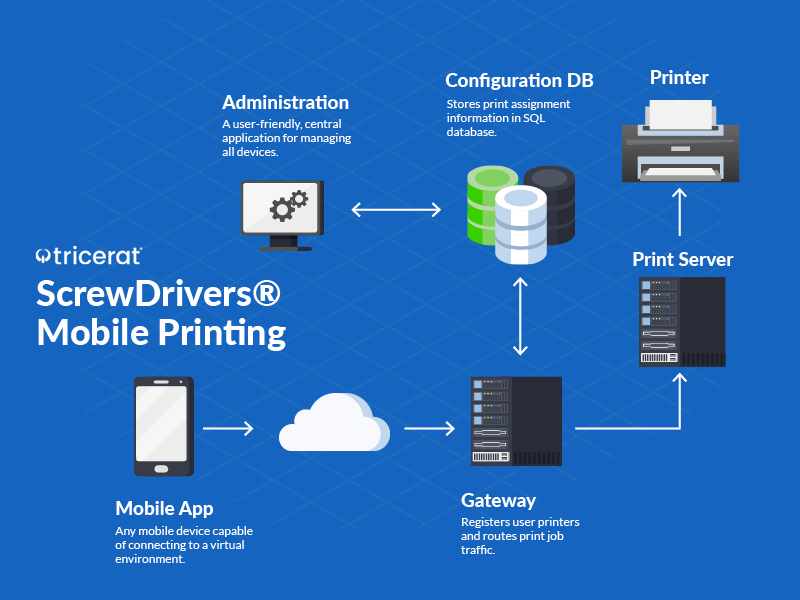
ScrewDrivers Mobile Application
The native mobile application installs on iOS (iPhone, iPad) or Android smartphones and tablets from the Apple App Store or Google Play Store. This app provides the user interface for mobile printing and handles document capture from mobile device sources.
Document Sources: The mobile app integrates with native iOS and Android sharing mechanisms, allowing users to print from any application that supports document sharing. Common scenarios include printing email attachments from corporate email apps, printing cloud documents from OneDrive, Google Drive, Dropbox, or other cloud storage, printing photos from device camera or photo library, printing PDFs and Office documents opened in mobile apps, and printing web pages from mobile browsers.
User Authentication: The app prompts users for their Active Directory credentials when first launched. Authentication uses your organization's AD infrastructure, supporting standard username/password, integration with mobile device management (MDM) systems for certificate-based authentication, and compatibility with multi-factor authentication (MFA) solutions.
Printer Selection: After authentication, the app displays printers assigned to the user based on their AD account and group memberships. Users add printers to their device once, and those printers remain available for all subsequent print jobs. The app remembers user preferences like default printer, paper size, duplex settings, and color modes.
Print Job Submission: When a user selects print, the app captures the document from the mobile OS sharing system, applies user-selected print preferences (copies, page range, orientation, paper size), compresses and encrypts the print data, and transmits the job to the ScrewDrivers Gateway for processing.
ScrewDrivers Gateway
The Gateway Service is a Windows service that installs on a server in your network (physical server or virtual machine) and acts as the translation layer between mobile devices and Windows print servers. The Gateway receives print jobs from mobile apps, authenticates users, translates mobile print formats to Windows-compatible formats, and submits jobs to print servers.
Job Reception: The Gateway listens on a configurable TCP port (default 4600) for connections from mobile applications. Mobile devices connect to the Gateway's IP address or DNS name, transmit authentication credentials, and submit print jobs. The Gateway supports multiple concurrent connections from many mobile devices simultaneously.
Authentication and Authorization: When a mobile device connects, the Gateway validates user credentials against Active Directory. Only users with valid AD accounts can submit print jobs. The Gateway then queries the ScrewDrivers SQL database to determine which printers this user has access to based on their AD group memberships and assigned permissions.
Print Job Translation: Mobile operating systems use different print formats than Windows print servers expect. The Gateway receives mobile print data (typically PDF or image formats), translates it to Windows-compatible print formats, applies user-selected preferences (paper size, duplex, color), and packages the job for submission to the Windows print server.
Job Submission: The Gateway submits translated print jobs to Windows print servers on behalf of the mobile user. From the print server's perspective, jobs appear to come from the Gateway server, but the Gateway maintains association with the original user for auditing and tracking purposes.
Windows Print Servers
Your existing Windows print server infrastructure hosts the physical print queues that mobile users will print to. No changes to print server configuration are required—Mobile Printing leverages your existing print queues, drivers, and printer configurations.
ScrewDrivers Virtual Driver: Print servers should have ScrewDrivers' universal virtual driver installed (standard with ScrewDrivers Pro or Enterprise print server components). This driver provides the translation layer that enables printing to any manufacturer's printers without driver conflicts.
Print Queue Access: The Gateway server requires permissions to submit print jobs to print queues on your print servers. Typically this means the Gateway service account needs appropriate permissions on print server objects, or the Gateway server is granted print permissions via security groups.
Job Processing: Once the Gateway submits a job to a print queue, standard Windows print spooler processing takes over. The job spools, renders with the appropriate driver, and routes to the physical printer. Print server features like job logging, quota management, and held-job release continue working as they do for any print job.
SQL Database Backend
Like other Pro and Enterprise architectures, Mobile Printing uses the ScrewDrivers SQL database to store configuration, user assignments, and audit information.
Printer Definitions: The database contains definitions of all printers available for mobile printing, including print server name, queue name, and printer model.
User Assignments: Mobile printer assignments use the same assignment model as other ScrewDrivers architectures. Drag and drop printers onto AD users or groups in the administrative console, and those assignments automatically apply to mobile users.
Audit Logging: The database stores mobile print job metadata (who printed what, when, to which printer, job size) for compliance and troubleshooting purposes.
How It Works: Mobile Print Job Flow
User Onboarding
1. App Installation: Users download the ScrewDrivers mobile app from the Apple App Store (for iOS devices) or Google Play Store (for Android devices). IT administrators can push the app via MDM systems for managed devices.
2. Configuration: On first launch, users enter configuration information—typically the Gateway server address (IP or DNS name) and port number. Organizations often provide this information via email, intranet documentation, or MDM configuration profiles that pre-populate these settings.
3. Authentication: Users enter their corporate AD credentials (username and password). The app communicates with the Gateway server, which validates credentials against Active Directory. Once authenticated, the session remains active until the user logs out or the authentication token expires.
4. Printer Discovery: After successful authentication, the app queries the Gateway for the list of printers this user has access to. The Gateway consults the SQL database to determine printer assignments based on the user's AD account and group memberships. The app displays available printers and allows the user to add printers to their device.
Printing Process
1. Document Selection: The user opens a document in any iOS or Android application that supports sharing or printing. This could be an email attachment, a cloud document, a photo, a PDF, or content from virtually any mobile app.
2. Print Initiation: The user selects the print or share option in the mobile app and chooses the ScrewDrivers mobile app as the destination. iOS and Android present different UI patterns for this, but both operating systems support this document-sharing mechanism.
3. Printer and Preference Selection: The ScrewDrivers mobile app displays the user's configured printers. The user selects a target printer, configures print preferences like paper size (Letter, A4, Legal), orientation (Portrait, Landscape), color mode (Color, Grayscale, Monochrome), duplex settings (Simplex, Duplex long edge, Duplex short edge), number of copies, and page range.
4. Job Submission: The app captures the document from the mobile OS, converts it to a standard format (typically PDF for maximum compatibility), applies any user-selected transformations (page rotation, scaling to fit paper size), compresses and encrypts the data for transmission, and sends the job to the Gateway server over the network connection.
5. Gateway Processing: The Gateway server receives the mobile print job, decrypts and decompresses the data, validates the user's authentication and authorization for the target printer, translates the mobile print format to Windows print format, applies printer-specific settings and preferences, and submits the job to the appropriate Windows print queue on the print server.
6. Print Server Processing: The print server receives the job from the Gateway, spools it like any other print job, renders it using the appropriate printer driver, and sends the fully rendered job to the physical printer.
7. Print Output: The physical printer produces the user's document. Depending on printer capabilities and user selections, output includes advanced features like duplex printing, stapling, hole-punching, PIN-released held jobs at the printer, or any other features the printer supports.
8. Job Status: The mobile app provides feedback on job submission success and may display job status information if the Gateway provides status updates. Users can verify their job submitted successfully without needing to walk to the printer immediately.
Security Features
Mobile printing introduces unique security considerations—corporate data leaving the building on personal or company devices, printing over potentially untrusted networks, and authentication of remote users. ScrewDrivers Mobile Printing addresses these concerns comprehensively.
Encryption
All communication between mobile devices and the Gateway server uses TLS 1.2 encryption. Print jobs, authentication credentials, printer lists, and all other data transmit encrypted, preventing interception or eavesdropping even when mobile users connect over untrusted networks (public Wi-Fi, hotel networks, cellular data).
Authentication
Mobile printing requires valid Active Directory authentication before any printer access or print job submission. Users must provide credentials that your AD infrastructure validates. This ensures only authorized employees can use mobile printing.
Credential Storage: The mobile app stores authentication tokens (not raw passwords) on devices using iOS Keychain or Android Keystore—platform-provided secure storage mechanisms. Tokens can be configured to expire, requiring periodic re-authentication for added security.
MFA Integration: Organizations using multi-factor authentication can integrate MFA with mobile printing. Common patterns include requiring MFA at initial authentication, requiring periodic MFA re-authentication, or requiring MFA for specific high-security printers.
Authorization
Beyond authenticating users, Mobile Printing enforces printer-level authorization. Just because a user has valid AD credentials doesn't mean they can print to every printer. The Gateway consults printer assignments in the SQL database and only allows users to print to printers they're assigned based on AD group membership or explicit assignment.
This authorization layer prevents users from discovering and printing to printers they shouldn't access—executive floor printers, financial department printers, or printers in physical locations the user doesn't have access to.
Network Security
Gateway Placement: Deploy the Gateway server inside your corporate network perimeter, behind firewalls and other network security controls. Mobile devices connecting from outside the corporate network typically access the Gateway via VPN, ensuring corporate network security policies apply to mobile printing traffic.
Firewall Rules: Configure firewalls to allow mobile printing traffic only from authorized sources. For example, allow connections to the Gateway port (4600) only from your VPN subnet, corporate Wi-Fi SSID, or other trusted networks.
Certificate-Based Security: The Gateway can require TLS client certificates for mobile device connections, adding an additional authentication factor. MDM systems can provision certificates to managed devices automatically.
Audit Logging
Enterprise edition's comprehensive audit logging tracks all mobile print activity:
User Activity: Who authenticated, when, from which device Print Jobs: What documents printed, to which printers, with what settings Authorization Attempts: Failed authentication attempts, access attempts to unauthorized printers Job Metadata: Document size, page count, timestamp, job completion status
This audit trail supports compliance requirements (HIPAA, SOX, GDPR, etc.) and forensic investigation when security incidents occur.
Network and Connectivity Considerations
On-Premises Mobile Users
Users in the office connecting to corporate Wi-Fi access the Gateway server directly over the internal network. This scenario is straightforward—mobile devices have IP connectivity to the Gateway, the Gateway has connectivity to print servers, and everything works with minimal configuration.
Wi-Fi Considerations: Corporate Wi-Fi should allow mobile devices to reach the Gateway server's IP address on the configured port (default TCP 4600). Some Wi-Fi configurations isolate devices from corporate network resources, requiring VLAN or security group adjustments to permit Gateway access.
Remote and VPN Users
Mobile users working remotely—from home, customer sites, or while traveling—need network connectivity to reach the Gateway inside your corporate network. The most common pattern uses VPN:
VPN-Based Access: Users connect to corporate VPN from their mobile device (using native iOS/Android VPN clients or third-party VPN apps), establishing secure tunneled access to the corporate network. Once VPN-connected, the ScrewDrivers mobile app can reach the Gateway server just as if the user were on corporate Wi-Fi.
Split Tunnel Considerations: If your VPN uses split tunneling (some traffic routes through VPN, other traffic routes directly to internet), ensure corporate network traffic—including Gateway traffic—routes through the VPN tunnel. Otherwise mobile printing traffic may not reach the Gateway.
Always-On VPN: Organizations using always-on VPN for mobile devices benefit from seamless mobile printing. Users don't need to remember to connect VPN before printing—the VPN connection persists in the background and mobile printing works automatically.
Direct Internet Access
Some organizations prefer not to require VPN for mobile printing. In these scenarios, the Gateway can be published to the internet (typically behind a reverse proxy or application delivery controller) allowing direct mobile device connections without VPN.
Security Implications: Publishing the Gateway to the internet increases attack surface. Implement strong authentication (MFA recommended), use certificate-based client authentication, monitor for brute-force authentication attempts, restrict access by source IP or geolocation, and ensure Gateway server is hardened and patched regularly.
Reverse Proxy: Rather than exposing the Gateway server directly, deploy it behind a reverse proxy (Azure Application Proxy, Citrix Gateway, F5 APM, etc.) that provides additional security controls, authentication, and monitoring.
Mobile Device Management (MDM) Integration
Organizations using MDM solutions to manage corporate mobile devices can integrate Mobile Printing with MDM for streamlined deployment and configuration.
App Distribution
Managed App Store: Publish the ScrewDrivers mobile app through your MDM's managed app store or catalog. Users install the app from the managed store rather than searching public app stores.
Required App Deployment: For corporate-owned devices, push the mobile app automatically as a required application. Users receive the app without needing to search or install manually.
App Updates: Configure automatic app updates through MDM, ensuring users always run current versions without manual intervention.
Configuration Profiles
Pre-Configured Settings: Use MDM configuration profiles to pre-populate Gateway server address, port, and other settings. Users launch the app and find it already configured—they just enter credentials and start printing.
Certificate Deployment: For environments requiring TLS client certificates, deploy certificates via MDM configuration profiles. Certificates provision automatically when users enroll devices in MDM.
VPN Configuration: MDM can deploy VPN profiles that configure VPN connections automatically, including always-on VPN settings that ensure connectivity for mobile printing.
Security Policies
App-Level Security: Apply MDM policies that require PIN or biometric authentication to launch the ScrewDrivers app, prevent data sharing from the app to unauthorized destinations, and block screenshots or screen recording within the app.
Device Compliance: Require devices to meet compliance policies (OS version, encryption enabled, no jailbreak/root, etc.) before MDM allows the ScrewDrivers app to install or run.
Containerization: Some MDM solutions support app containerization, isolating corporate apps and data from personal apps on BYOD devices. Deploy ScrewDrivers mobile app in the managed container to enforce additional security controls.
Use Cases and Deployment Scenarios
Executive and Mobile Workforce
Executives, sales teams, and other highly mobile employees benefit significantly from mobile printing. Print customer presentations before meetings, print contracts while at client sites, print travel documents and boarding passes, and print email attachments without returning to the office or finding a workstation.
These users often carry corporate-issued devices (iPhones, iPads, Android tablets) making deployment straightforward through MDM.
Healthcare Clinical Staff
Clinicians using mobile devices for patient care workflows (physicians with tablets doing rounds, nurses with medication administration devices, home health workers with smartphones) need mobile printing for patient education materials, prescription information, care instructions, and clinical documentation.
Healthcare's stringent compliance requirements (HIPAA) make ScrewDrivers' encrypted, authenticated, audited mobile printing much more appropriate than consumer cloud printing services.
Field Service and Remote Workers
Field service technicians, remote sales representatives, and other workers who primarily work outside the office but occasionally need to print to corporate printers benefit from mobile printing. They can submit print jobs remotely (service reports, customer documents, invoices) that await them when they return to the office or that colleagues can retrieve.
BYOD Environments
Organizations with bring-your-own-device (BYOD) policies allowing employees to use personal smartphones and tablets for work benefit from mobile printing's security model. Employees don't need to install VPN clients or connect personal devices to corporate networks—the ScrewDrivers app provides isolated, secure printing without compromising device or network security.
MDM's app containerization features work well here, keeping the ScrewDrivers app and corporate data separate from personal device content.
Conference Rooms and Shared Spaces
Employees attending meetings in conference rooms can print presentations, agendas, or handout materials directly from their mobile devices to nearby conference room printers. This eliminates the need for conference room PCs or asking IT to print materials in advance.
Use IP-based printer assignments to assign conference room printers to users when their mobile device connects from the conference room subnet.
Mobile Platform Support
iOS Support
Compatible Devices: iPhone (iOS 12 or newer), iPad (iOS 12 or newer), iPod Touch (iOS 12 or newer)
Integration Points: iOS Share Sheet for document sharing, iOS print dialog integration (app appears as print destination), iOS Keychain for credential storage, iOS VPN integration for automatic VPN initiation
Document Sources: Print from Mail, Safari, Files, Photos, iCloud Drive, third-party apps supporting iOS sharing
Android Support
Compatible Devices: Android smartphones and tablets (Android 6.0 or newer)
Integration Points: Android Share menu for document sharing, Android print service integration, Android Keystore for credential storage, Android VPN integration
Document Sources: Print from Gmail, Chrome, Files, Photos, Google Drive, third-party apps supporting Android sharing
Functional Parity
While iOS and Android platforms differ architecturally, the ScrewDrivers mobile apps provide functional parity across platforms. Users switching between iOS and Android devices experience consistent mobile printing capabilities, interfaces, and workflows.
Administrative Management
Printer Assignment
Mobile printer assignments use the same drag-and-drop administrative console as other ScrewDrivers architectures. Assign printers to AD users or groups, and those assignments automatically apply to mobile printing.
User-Based Assignment: Assign specific printers to individual users for personalized printer access Group-Based Assignment: Assign printers to AD security groups for department or role-based printing All-Users Assignment: Make certain printers available to all mobile users (visitor lobby printer, general office printers)
Configuration and Policies
Gateway Configuration: Configure Gateway server settings like listening port, maximum concurrent connections, authentication timeout, and logging levels through the administrative console.
Print Quotas: If using ScrewDrivers' print quota features, mobile print jobs count against user quotas just like desktop printing.
Printer Profiles: Printer profiles defining default settings (duplex, color mode, paper size) apply to mobile printing just as they do for desktop printing.
Monitoring and Troubleshooting
Gateway Logs: Monitor Gateway service logs for connection attempts, authentication failures, job submissions, and errors. Logs help troubleshoot user issues and detect suspicious activity.
Job History: View mobile print job history in the administrative console, including user, timestamp, printer, document name, and job status.
User Activity: Track which users are actively using mobile printing, how frequently, and to which printers—helping inform printer deployment and capacity planning decisions.
Limitations and Considerations
Gateway Dependency
Mobile printing depends on the Gateway server being accessible and operational. If the Gateway is down or unreachable, mobile users cannot print. Consider Gateway redundancy (multiple Gateway servers behind a load balancer) for high-availability requirements.
Print Server Requirement
Mobile Printing architecture specifically supports Windows print server environments. Organizations without print servers (using only Direct IP printing or client-side printer redirection) cannot use Mobile Printing in its standard form—those scenarios may require Enterprise Remote Printing architecture instead.
Mobile OS Limitations
Mobile operating systems have inherent limitations compared to desktop OS capabilities. Some advanced print features available from Windows applications may not be accessible from mobile devices due to mobile OS constraints, not ScrewDrivers limitations.
Network Connectivity
Mobile printing requires network connectivity from mobile devices to the Gateway server. Users in locations without Wi-Fi or cellular data, or users in areas where corporate VPN cannot establish connections, cannot print until connectivity is restored.
Document Format Support
The mobile app supports most common document formats (PDF, Office documents, images, plain text). Highly specialized document formats or documents requiring specific rendering engines might not print correctly from mobile devices. Test representative documents during pilot deployments.
Deployment Best Practices
Pilot with Mobile-Heavy Users: Deploy first to users who will benefit most—executives, sales teams, mobile workers. Their feedback validates functionality and identifies issues before broad rollout.
MDM Integration: Leverage MDM for streamlined app deployment and configuration. Pre-configured apps dramatically improve user experience and reduce help desk calls.
User Communication: Provide clear instructions for app installation, authentication, and printer setup. Video tutorials or one-page quick-start guides help users adopt mobile printing successfully.
VPN Testing: Validate VPN connectivity from various locations (home networks, cellular networks, customer sites) before assuming VPN-based mobile printing will work universally.
Printer Selection: Start with a subset of printers for mobile printing—common-use printers in high-traffic areas. Don't overwhelm mobile users with dozens of printer choices if they'll only ever use two or three.
Help Desk Training: Train help desk staff on mobile printing troubleshooting—app installation issues, VPN connectivity, authentication failures, and common user questions.
Related Architectures
Mobile Printing complements other ScrewDrivers architectures rather than replacing them:
Mobile + Print Server: Users get mobile printing for smartphones/tablets and print server printing from virtual desktops—comprehensive coverage across all device types
Mobile + Essentials: Users get mobile printing plus client-side printer redirection when using full desktop systems
Mobile + Direct IP: Organizations using Direct IP printing can deploy Mobile Printing separately for mobile device support
Mobile Printing is an add-on capability that extends enterprise print management to mobile platforms without disrupting existing printing infrastructure.
Technical Requirements
Gateway Server: Windows Server 2016 or newer, .NET Framework 4.8, network connectivity to print servers and SQL database, inbound port TCP 4600 (configurable) for mobile device connections
SQL Database: Microsoft SQL Server 2012 or newer (shared with other ScrewDrivers components)
Print Servers: Windows print servers with ScrewDrivers components installed
Mobile Devices: iOS 12+ or Android 6.0+, network connectivity to Gateway server (Wi-Fi, cellular, VPN)
Network: Firewall rules permitting mobile device to Gateway connectivity, Gateway to print server connectivity, Gateway to SQL Server connectivity
Support and Resources
Tricerat Support: Email support@tricerat.com or call 800-582-5167 Documentation: Mobile printing deployment guides, troubleshooting articles, user quick-start guides Training: Administrator training covering mobile printing deployment and management
Related Documentation
- Architecture Overview - Comparison of all ScrewDrivers architectures
- Enterprise: Remote/Cloud Printing - Alternative architecture for cloud-hosted environments
- ScrewDrivers Enterprise Admin Guide - Comprehensive administrative reference
- Installation Requirements - System requirements and prerequisites
Summary
ScrewDrivers Enterprise Mobile Printing extends your organization's print infrastructure to iOS and Android devices, providing secure, authenticated, audited mobile printing from smartphones and tablets. By integrating with existing Windows print servers and Active Directory, Mobile Printing delivers enterprise-grade functionality without requiring changes to your established infrastructure.
For organizations supporting mobile workforces, BYOD policies, or users who need printing flexibility beyond traditional desktops, Mobile Printing provides the security, manageability, and user experience that makes mobile printing a practical reality.