Configuring ScrewDrivers TCP/IP Client
The v7 ScrewDrivers Client on Windows can support Endpoint and Scanning functionality without relying on virtual channels. Instead, it uses a direct TCP/IP connection to the ScrewDrivers Gateway server. This approach provides greater flexibility and works across RDP, ICA, and HTML5 connections. This guide walks you through the required components and configuration steps.
Architecture overview
For a visual representation of the TCP/IP client architecture, see the ScrewDrivers diagrams on the Tricerat blog. The second diagram shows a typical client/server connection where the clouds between client and server represent TCP/IP connections.
Requirements
Before you begin, ensure you have these components and conditions in place:
-
ScrewDrivers Gateway service: The Gateway must be installed in your server environment and accessible from both client computers (via FQDN or IP address) and application servers where users log in. The Gateway runs in the same domain as your application servers since client users authenticate to the Gateway. Note that the Gateway service requires an Enterprise license. (Gateway installation isn't covered in this guide.)
-
Client installation: The client computer needs the TCP/IP client installed along with either the Endpoint client, Scanning client, or both—install only the products you plan to use.
-
Disabled virtual channel DLLs: You'll disable the DLLs normally used to register virtual channel extensions. These aren't needed even when using RDP or ICA connections to the application server.
-
Gateway credentials: The TCP/IP client connects to the Gateway server using the same credentials you use for your remote session.
-
Pre-connection requirement: The TCP/IP client must be connected before you start any server session, regardless of the protocol (RDP, ICA, or HTML5).
Installing the client
During installation, you'll see the ScrewDrivers Client installation screen where you can select which components to install:
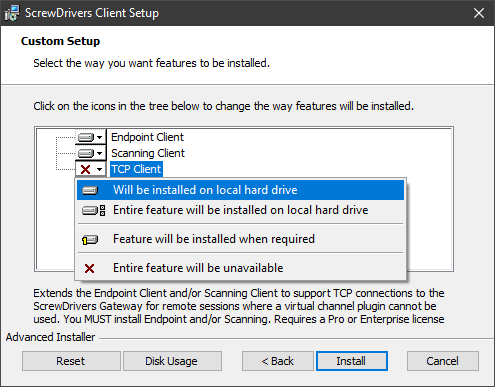
If you don't need either the ScrewDrivers Scanning Client or ScrewDrivers Endpoint Client, click the dropdown for that component and select "Entire feature will be unavailable". However, you must install at least one of these clients (Endpoint or Scanning) for the TCP/IP client to function.
Complete the client installer to proceed to the next step.
Disabling the client DLLs
After installation, you'll need to disable the protocol DLLs. While this is a manual operation, there are batch scripts available to simplify the process. Open File Explorer and navigate to the ScrewDrivers Client installation location:
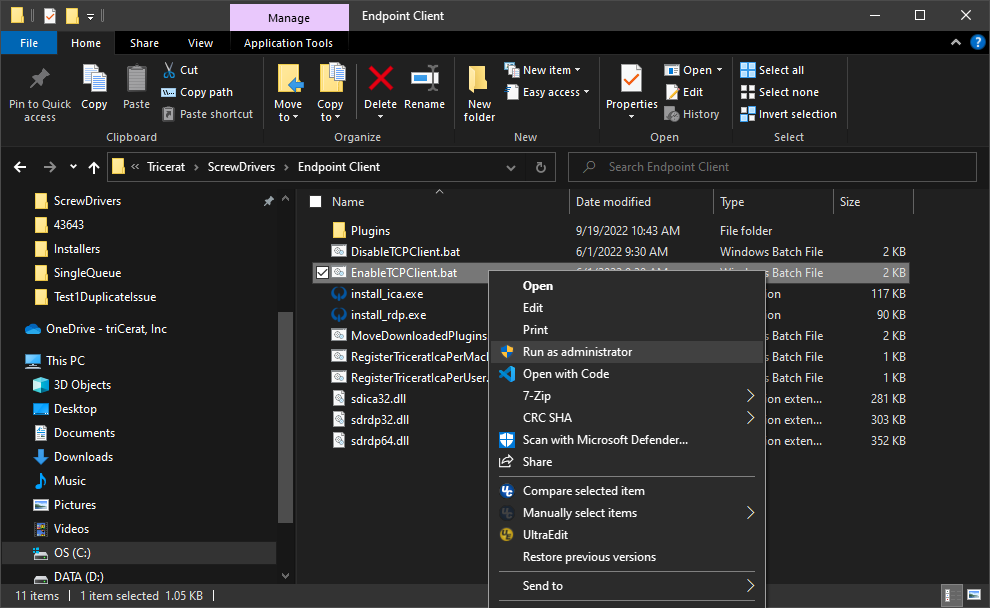
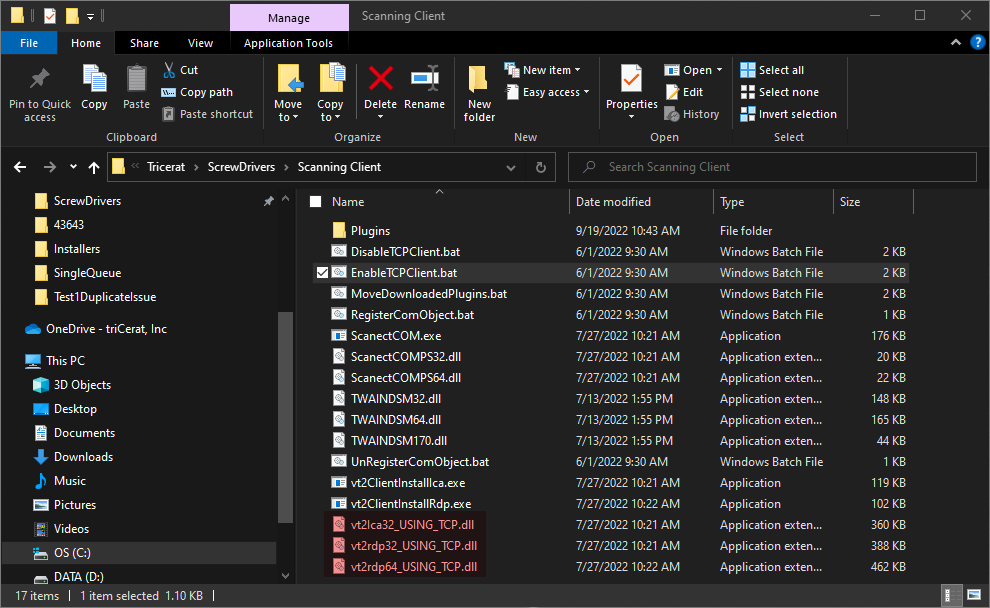
Run the disable script, which will rename the protocol DLLs as shown:
Configuring the TCP/IP Client
You'll find a shortcut for the ScrewDrivers TCP Client in your Start menu—consider pinning it there for easy access. Before connecting to your session server, launch the ScrewDrivers TCP Client using this shortcut. (The program's typically installed at C:\Program Files\Tricerat\ScrewDrivers\Common\ScrewDrivers TCP Client.exe.) It runs as a tray application and displays the blue Tricerat horns icon:
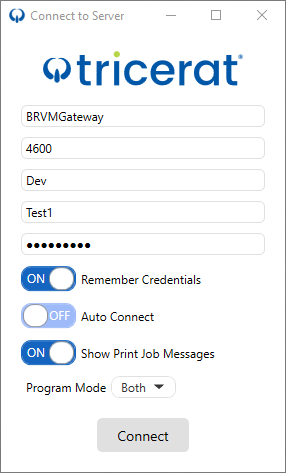
Right-click the icon and choose Login to open the Connect to Server dialog:
Connection settings
Configure your connection with these settings:
- Server address: Enter either a FQDN or valid IP address for your Gateway server
- Domain and Username: These must match the credentials you use when connecting to your session on the server
- Remember credentials: Turn this ON to save your encrypted password, domain, and username in the registry under
HKCU\SOFTWARE\Tricerat\ScrewDrivers\TCP Client - Auto Connect: Turn this ON to have the TCP Client automatically connect to the Gateway server when it starts
- Program Mode: This should match your client installer options. Click the dropdown arrow to select from available modes (Endpoint, Scanning, or both)
Menu options
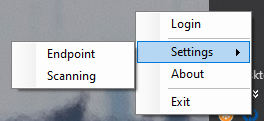
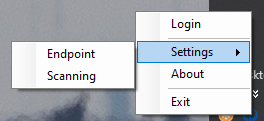
The TCP Client menu provides these options:
- Login: Opens the login/connection dialog. If you're already connected to the Gateway server, this becomes "Disconnect" instead
- Settings: Opens the standard configuration program for Endpoint or Scanning (depending on your installation). This is the same as launching the ScrewDrivers Endpoint Client or ScrewDrivers Scanning Client programs from other shortcuts or directly from
C:\Program Files\Tricerat\ScrewDrivers\Common - About: Displays version information
- Exit: Closes the TCP Client program and disconnects from the Gateway server if you're connected
Print job notifications
When you print to a ScrewDrivers client printer from your server session, you'll see a popup message if your "Show Print Job Messages" option is ON. The message displays the client printer name and document name. Click the popup to view the print queue for that printer.