Upgrading ScrewDrivers v7 Pro/Enterprise to a Newer Release
Overview
Already running ScrewDrivers v7 and ready to move to a newer 7.x release? This guide walks you through upgrading each server-side component of a Pro or Enterprise deployment: the license server, print servers, database, App Servers/VDI hosts, and the Administration console.
Good news up front: v7 point-release upgrades are much simpler than the v6-to-v7 migration. The installers run in place over your current installation — there's nothing to uninstall first — and your endpoint clients keep working without a rollout. When a v7 client connects to an upgraded server, it automatically downloads the matching plugin for that session, so upgrading the server tier doesn't require touching your workstations. See How Does Enable Automatic Client Updates Work for details.
If you're upgrading from v6, this isn't your guide — follow Upgrading to ScrewDrivers v7 Pro/Enterprise Edition instead.
Always download the latest release from the Tricerat downloads share — your account team or Tricerat Support provides the link. Staying current keeps each upgrade small and low-risk, and you get the newest fixes and features. Check the Version 7 Release Notes to see what's changed since your installed version.
Before you begin
A little preparation makes the upgrade routine instead of stressful:
- Back up the ScrewDrivers database. This backup is your rollback plan. There's no automated rollback — if something goes wrong, recovery means restoring the database and reinstalling your previous version. See Rolling back.
- Download the installers you'll need (ask your account team or Tricerat Support for the downloads link): the license server installer, the ScrewDrivers Pro/Enterprise installer, and the ScrewDrivers Database installer. Copy them to each machine and run them locally — we recommend against running Tricerat installers from a UNC path.
- Check license server compatibility. ScrewDrivers v7.9.6 and later require Tricerat License Server v6.0.7.0 or later. The newest license server is backward compatible with all v6 and v7 product versions, so it's always safe to install the latest.
- Schedule a maintenance window. Verify users aren't logged in to the systems you're upgrading. Each component has a brief service interruption, called out in the steps below.
We recommend upgrading all server-side components — license server, print servers, database, and session agents — to the same version in the same maintenance window. Matching versions across the server tier ensures full compatibility and makes support easier.
Step 1: Upgrade the license server
Run the latest TriceratLicenseServer_x.x.x.x_x64.exe on your license server. It installs directly over your current version and retains your existing activation and configuration — proceed through the prompts until the install completes.
While the license server upgrades, users attempting to check out a license receive a grace-period license until the upgrade completes. Users who already hold a license aren't affected.
For step-by-step details, including how to find your activation code and which files to save as a safeguard, see Upgrading Your License Server.
Step 2: Upgrade print servers
On each print server, run the ScrewDrivers Pro/Enterprise installer over the current installation and select the Print Server components:
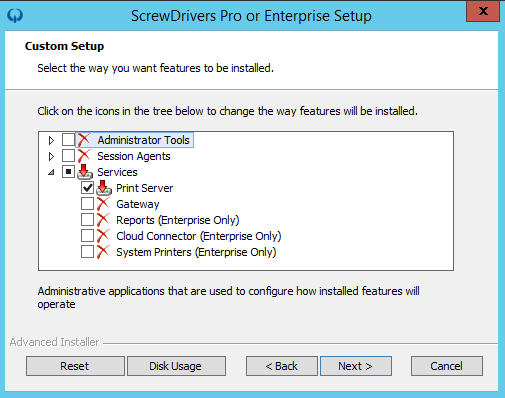
While a print server upgrades, print jobs aren't processed — any jobs submitted during the upgrade need to be resubmitted — and printer building is affected. Upgrade print servers during your maintenance window.
Step 3: Upgrade the database
Run the ScrewDrivers Database installer. It upgrades your database schema for the new release and points the software at the Tricerat database. This is a one-time step for your deployment — run it once, not on every server.
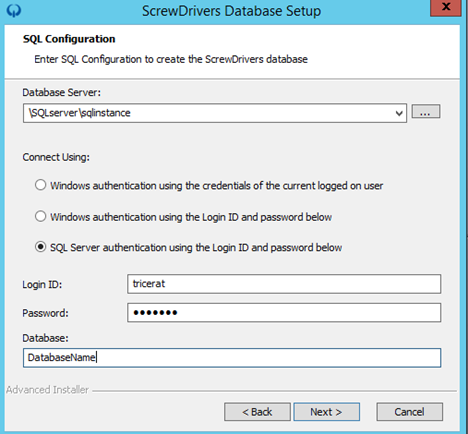
Step 4: Upgrade a pilot App Server/VDI host
The App Server (also called Session Host or VDI host) is where users connect and where printers are created in their sessions. Don't upgrade them all at once — pick one as your pilot and leave the rest on the current version until it validates cleanly.
On the pilot, run the ScrewDrivers Pro/Enterprise installer over the current installation and select the components you use:
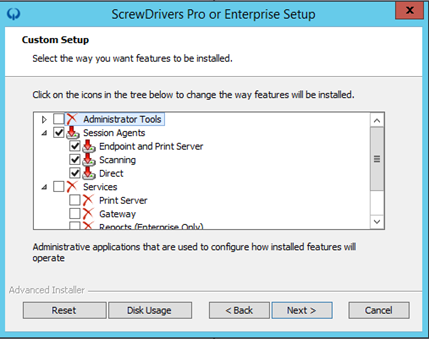
You can leave out components you don't need. For example, if your organization doesn't use scanner redirection, uncheck Scanning to avoid installing unnecessary software.
Step 5: Upgrade the Administration console
On your management server, or any system with ScrewDrivers Administration installed, run the ScrewDrivers Pro/Enterprise installer and select the Administration component:
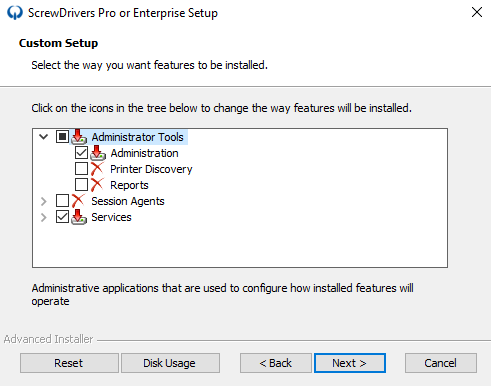
Then refresh the server information so the console reports the new version:
-
Open the ScrewDrivers Administration console and go to your Print Server object.
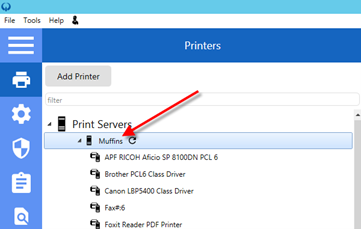
-
In the Information column, expand the Information tab.
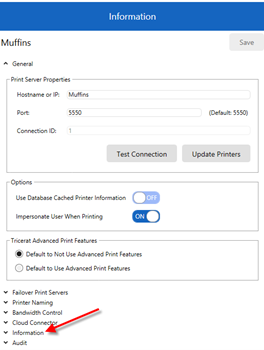
-
Click Refresh Server Information.
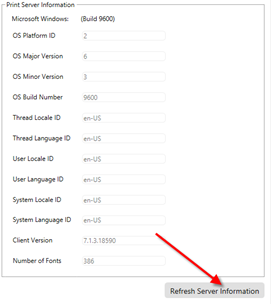
The client version listed updates to the new release, and you're ready for normal operation.
Step 6: Validate on the pilot
Before touching the rest of the fleet, put the pilot host through the Print Environment Validation Checklist — printer building, test prints per printer type, scanning, license checkout, and client plugin versions.
Let the pilot soak with real users for as long as your risk tolerance requires — a busy shift or a business day catches what a five-minute test can't. If something's wrong, you've limited the blast radius to one host, and rolling back means restoring only your pilot.
Step 7: Roll out to the remaining servers
Once the pilot validates cleanly, repeat Steps 4–5 for the rest of your App Servers and VDI hosts, one at a time or in small groups, gradually moving user sessions onto upgraded servers. Run the validation checklist once more when the rollout completes.
Endpoint clients pick up the matching plugin automatically the next time they connect, so there's no client rollout to schedule. If you also want to update the installed client software itself, the client MSI supports silent deployment — see Silent Install Switches.
Rolling back
If you hit a critical issue, recovery is straightforward but manual:
- Restore the ScrewDrivers database from the backup you took before upgrading.
- Uninstall the new version from the affected servers.
- Reinstall your previous version and confirm functionality.
Keep your previous installers and your database backup until you've validated the new release in production.
Getting help
If you run into trouble during the upgrade, Tricerat Support can help:
- Email: Support@tricerat.com
- Phone: 800-582-5167 x3
- Portal: https://support.tricerat.com
Include your ScrewDrivers versions (before and after the upgrade), operating system versions, deployment method (RDP, Citrix, Omnissa), and any error messages or log files.