PrinterCleanup.exe Utility
Overview
PrinterCleanup.exe is a Tricerat utility that maintains Windows printer registry keys by removing invalid entries. It addresses a common Windows limitation where printer entries are added to registry keys but not properly removed when printers are deleted.
The Problem
Windows maintains two registry keys that contain printer names:
HKEY_CURRENT_USER\Software\Microsoft\Windows NT\CurrentVersion\DevicesHKEY_CURRENT_USER\Software\Microsoft\Windows NT\CurrentVersion\PrinterPorts
These keys are managed by Microsoft—values are added when printers are installed and should be removed when printers are deleted. However, Windows does a poor job of maintaining these keys, typically adding entries but failing to remove them when printers are deleted.
Impact
While stale printer entries usually don't cause problems, some poorly designed applications read these registry keys directly and treat them as valid printer lists. This can result in:
- Applications showing deleted printers as available
- Print dialog errors when users select stale printer entries
- Confusion about which printers are actually available
- Failed print jobs
Properly designed applications use the standard Windows print dialog (like Notepad and Microsoft Word), which isn't affected by stale registry entries.
Solution: PrinterCleanup.exe
PrinterCleanup.exe removes invalid entries from these registry keys, keeping them synchronized with the actual installed printers. Several Tricerat customers use this utility with excellent results.
Command-Line Options
PrinterCleanup.exe supports options that control what it does and how much it tells you:
| Option | Effect |
|---|---|
-removeOrphaned | Remove orphaned printer entries from the Devices and PrinterPorts keys |
-validate | Preview mode — log what would be removed without changing anything |
-noLog | Suppress log file creation (see Logging Behavior below) |
To see what the utility would do before letting it act, combine the options. This is safe to run at any time:
"C:\Program Files\Tricerat\ScrewDrivers\Endpoint\PrinterCleanup.exe" -removeOrphaned -validate
Review the resulting log in C:\ProgramData\Tricerat\Logs. If it finds issues, drop -validate to perform the removal, and share the generated logs with Tricerat Support if you'd like them reviewed.
From a PowerShell prompt, prefix the quoted path with the call operator: & "C:\Program Files\Tricerat\ScrewDrivers\Endpoint\PrinterCleanup.exe" -removeOrphaned
Implementation
The recommended approach is to run PrinterCleanup.exe automatically at user logon using a Run registry key.
Automatic Logon Configuration
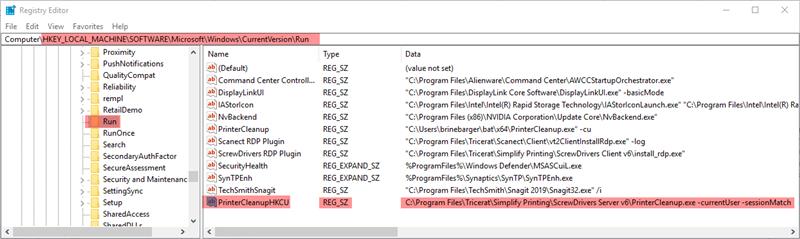
Create a registry Run value to execute the utility each time a user logs into the server:
Registry Path:
HKEY_LOCAL_MACHINE\SOFTWARE\Microsoft\Windows\CurrentVersion\Run
Or for per-user execution:
HKEY_CURRENT_USER\Software\Microsoft\Windows\CurrentVersion\Run
Registry Configuration:
PowerShell Implementation
# System-wide (runs for all users at logon)
New-ItemProperty -Path "HKLM:\SOFTWARE\Microsoft\Windows\CurrentVersion\Run" `
    -Name "Tricerat PrinterCleanup" `
    -Value "C:\Program Files\Tricerat\ScrewDrivers\Endpoint\PrinterCleanup.exe" `
    -PropertyType String `
    -Force

# Per-user (runs for current user at logon)
New-ItemProperty -Path "HKCU:\Software\Microsoft\Windows\CurrentVersion\Run" `
    -Name "Tricerat PrinterCleanup" `
    -Value "C:\Program Files\Tricerat\ScrewDrivers\Endpoint\PrinterCleanup.exe" `
    -PropertyType String `
    -Force
Manual Execution
You can also run PrinterCleanup.exe manually from the command line:
"C:\Program Files\Tricerat\ScrewDrivers\Endpoint\PrinterCleanup.exe"
Logging Behavior
By default, PrinterCleanup.exe creates a log file each time it runs. Log files are written to:
C:\ProgramData\Tricerat\Logs
No Tricerat diagnostic logging needs to be enabled—PrinterCleanup.exe logs independently.
Managing Log Files
Log files can accumulate over time, especially when the utility runs at every logon. You have two options:
Option 1: Keep Logs (Recommended Initially)
During initial implementation, keep logging enabled so you can verify the cleanup behavior and troubleshoot any issues. Review the logs with Tricerat support if you're implementing this for a customer.
Option 2: Disable Logging
Once you've verified that PrinterCleanup.exe is working correctly, you can disable log file creation with the -noLog option:
"C:\Program Files\Tricerat\ScrewDrivers\Endpoint\PrinterCleanup.exe" -noLog
Don't disable logging initially. If issues arise and you have no logs, troubleshooting becomes much more difficult.
PowerShell with -noLog Option
# System-wide with logging disabled
New-ItemProperty -Path "HKLM:\SOFTWARE\Microsoft\Windows\CurrentVersion\Run" `
    -Name "Tricerat PrinterCleanup" `
    -Value "`"C:\Program Files\Tricerat\ScrewDrivers\Endpoint\PrinterCleanup.exe`" -noLog" `
    -PropertyType String `
    -Force
Deployment Recommendations
When implementing PrinterCleanup.exe for customers:
- Enable logging initially: Don't use
-noLogduring initial deployment - Collect initial logs: Run the utility a few times and collect the log files
- Review with Tricerat: Share the initial logs with Tricerat support to verify correct operation
- Monitor performance: Check that the utility runs quickly and doesn't impact logon times
- Consider -noLog: After verification, optionally disable logging to prevent log accumulation
Use Cases
PrinterCleanup.exe is particularly valuable in:
- Multi-session environments: Terminal servers and VDI hosts where users frequently connect/disconnect
- Dynamic printer environments: Environments where printers are frequently added, removed, or replaced
- Application compatibility: Situations where legacy or custom applications read printer registry keys directly
- ScrewDrivers deployments: Environments using ScrewDrivers where printers are dynamically created per session
Group Policy Deployment
You can deploy PrinterCleanup.exe via Group Policy:
- Copy the utility: Place PrinterCleanup.exe in a shared network location or ensure it's installed via GPO
- Create Logon Script: Use Group Policy Preferences or Logon Scripts to execute the utility
- Target OUs: Apply to organizational units containing your session hosts or VDI machines
Example Logon Script
@echo off
REM Tricerat PrinterCleanup utility
if exist "C:\Program Files\Tricerat\ScrewDrivers\Endpoint\PrinterCleanup.exe" (
    "C:\Program Files\Tricerat\ScrewDrivers\Endpoint\PrinterCleanup.exe"
)
Troubleshooting
Utility Not Running
Check that:
- The utility file exists at the specified path
- The registry Run key is properly configured
- The user has execute permissions for the utility
- Review the log file (if logging is enabled) for error messages
Printers Still Showing in Applications
Some applications cache printer lists. After running PrinterCleanup.exe:
- Restart the application
- Log off and log back in
- Clear application-specific printer caches if available
Performance Impact
PrinterCleanup.exe typically runs very quickly (under one second). If you notice logon delays:
- Check the log file for errors or warnings
- Ensure the utility has appropriate permissions
- Contact Tricerat support if issues persist