Refreshing Print Server Printers
This page describes ScrewDrivers / Simplify v6, which reached end of life on December 31, 2025. It is retained for legacy deployments and historical reference and may not apply to current ScrewDrivers releases.
ScrewDrivers needs accurate information from the manufacturer printer driver on your print server to properly configure the virtual driver. This information is initially gathered when you add the print server to the Simplify Console and import print server printers. However, there are times when this information changes and needs to be refreshed.
When to refresh printer information
You should refresh your printer information in two scenarios:
- Driver updates: When you update a printer driver on the print server
- Agent updates: When you upgrade the ScrewDrivers Print Server agent
Refreshing re-queries the printer information and stores the updated details in the database. While this isn't strictly necessary when you're not using cached printer information, it's required if that option is enabled. Tricerat recommends refreshing as a best practice whenever either condition is met.
How to refresh printers
Follow these steps to refresh your print server printers:
- Open the Simplify Console.
- Navigate to Printers > ScrewDrivers > v6 Print Servers.
- Select the Print Server object you want to refresh.
- On the General tab, click the Refresh All Printers button.
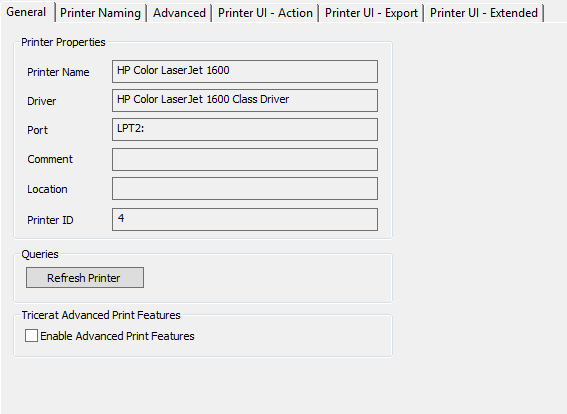
This process re-queries all printer information from the print server and updates the ScrewDrivers database with the current settings. The refresh typically completes within a few moments, depending on the number of printers on your print server.